Building Okta Resources with Terraform

As a consultant who spends large amounts of time implementing customer solutions, automation has become a key part of my job. A technology that can be automated is instantly more attractive for me to use. This is one of the key reasons that I love Terraform. It enables me to write cross platform automation and when automation isn’t natively supported, I can write a custom provider. That’s why the recent announcement of a custom Terraform provider for Okta is my favorite feature announcement of 2019 and why I’ll be covering the basics of Okta & Terraform in this blog. If you’re not sure how to use Terraform, have a look here for an initial overview, otherwise let’s dive in!

Setting up – Building the provider and API key generation.

The first thing you’ll need to do is build the Okta provider. This isn’t too hard; however, the GitHub readme is written for Unix users. If you’re on Windows like me, you will need to have a basic understanding of how to compile Go and how to use custom providers in terraform.

Cloning the Okta Terraform Git Repo

First step, clone the Git repo and CD in.

Building the Okta Terraform Provider 1

Next, build the Provider, note that if you try run the generated EXE, you’ll be prompted that the file is a plugin. To stick with the Terraform documentation, I’ve used the following EXE naming format: terraform-provider-PRODUCT-vX.Y.Z.exe

Building the Okta Terraform Provider 2

Finally, copy the provider into the Terraform plugin path. For 64 bit windows, this is generally: %APPDATA%\terraform.d\plugins\windows_amd64

Building the Okta Terraform Provider 3

Now that we have a functional provider for Terraform, its time to generate an API key. Please be careful with these keys. as they inherit your Okta permissions and shouldn’t be left lying around!

Start in the Okta portal, navigate to Security and then API. You should find the following button on the top left.

Okta new token button

Fill in a token name – If you’re using this in production, generally keep some data about the token usage here!

Okta API Token Name
My super secret Okta key


Insert your freshly generated API token into the following Terraform HCL!

provider "okta" {
 org_name  = "demoorg"
 api_token = "API TOKEN HERE"
 base_url  = "okta.com"
}

Building resources

Now that we have a provider configured, lets create some resources. Thankfully, the provider developers (articulate) have detailed out common use cases for the provider here. Creating a user isn’t too difficult, provided you have the four mandatory fields handy:

resource "okta_user" "XelloDemo" {
 first_name = "Xello"
 last_name  = "Okta Terraform"
 login      = "Xello.OktaTerraform@xellolabs.com"
 email      = "Xello.OktaTerraform@xellolabs.com"
 status     = "STAGED"
}

Terraform Init will begin the deploy process

Terraform Init to setup the base environment

And Terraform apply to deploy!

Using Terraform Apply to configure Okta User

Now deploying a user isn’t too imaginative or special. After all, you can easily bulk import from a CSV and scripting out API creation isn’t too hard. This is where the power of articulates provider comes in – It currently supports the majority of the Okta API, and the public can add support where possible. Let’s look at something a bit more advanced.

resource "okta_user" "AWSUser1" {
first_name = "XelloLab"
 last_name  = "AWSDemo"
 login      = "XelloLab.AWSDemo@xellolabs.com"
 email      = "XelloLab.AWSDemo@xellolabs.com"
 status     = "ACTIVE"
}

resource "okta_group" "AWSGroup" {
 name = "AWS Assigned Users"
 description = "This group was deployed by Terraform"
 users = [
   "${okta_user.AWSUser1.id}"
 ]
}

resource "okta_app_saml" "test" {
 preconfigured_app = "amazon_aws"
 label             = "AWS - Terraform Deployed"
  groups            = ["${okta_group.AWSGroup.id}"]
 users {
   id       = "${okta_user.AWSUser1.id}"
   username = "${okta_user.AWSUser1.email}"
 }
}

In the above Terraform code, we have a user being configured, assigned to a group, and then assigned into an Okta integration network application. Rather than clicking through the Okta portal, I’ve relied on infrastructure as code to deploy all the resources. I can even begin to combine providers to deliver cross platform integration – This snippet will work nicely with the AWS identity provider, enabling me to neatly configure the SAML integration between the two services, without leaving my shell or pipeline. The end result? No click ops, just code and the AWS  application configured in a matter of minutes!

AWS Application Configured in Okta

Fast and Furious – Okta Drift

One of the things that Terraform is really excellent for is minimizing configuration drift. Regularly running Terraform apply, either from your laptop or a CICD pipeline, can ensure that applications are maintained as documented and deployed. In the below example you can see Terraform correcting an undesired application update.

Okta Config drift with Terraform

You shouldn’t have to worry about an overeager intern destroying your application setup, and the Okta/Terraform combo prevents this!

Cleaning up 

Destroying Okta resources with Terraform

The other super useful thing with using Terraform is the cleanup process. I’ve lost count of how many times I’ve clicked through a portal or navigated to an API doc just to bulk delete resources. Okta users Immediately come to mind for this problem! By running Terraform destroy, I can immediately clean up my environment. Great for testing out new functionality or lab scenarios.


Hopefully by now you’re beginning to understand what some of the options will be when configuring Okta with Terraform. For my day to day work as a consultant, this is an excellent integration and the varied cross platform use cases are nearly limitless. As always, for any questions please feel free to reach out to myself of the team!

SCOM of the Earth: Replacing Operations Manager with Azure Monitor (Part Two)

In this blog, we continue where we left off  in part one, spending a bit more time expanding on the capabilities of Azure Monitor. Specifically, how powerful Log Analytics & KQL can be, saving us huge amounts of time and  preventing alert fatigue. If you haven’t already decided whether or not to use SCOM or Azure monitor, head over to the Xello comparison article here.

For now, lets dive in!

Kusto Query Language (KQL) – Not your average query tool.

Easily the biggest change that Microsoft recommends when moving from SCOM to Azure Monitor is to change your alerting mindset. Often organisations get bogged down in resolving meaningless alerts – Azure Monitor enables administrators to query data on the fly, acting on what they know to be bad, rather than what is defined in a SCOM Management Pack. To provide these fast queries, Microsoft developed Kusto Query Language – a big data analytics cloud service optimised for interactive ad-hoc queries over structured, semi-structured, and unstructured data. Getting started is pretty simple and Microsoft have provided cheat-sheets for those of you familiar with SQL or Splunk queries.

What logs do I have?

By default, Azure Monitor will collect and store platform performance data for 30 days. This might be adequate for simple analysis of your virtual machines, but ongoing investigations and detailed monitoring will quickly fall over with this constraint. Enabling extra monitoring is quite simple. Navigate to your work space, select advanced settings, and then data.

From here, you can on board extra performance metrics, event logs and custom logs as required. I’ve already completed this task, electing to on board some Service, Authentication, System & Application events as well as guest level performance counters. While you get platform metrics for performance by default, on-boarding metrics from the guest can be an invaluable tool – Comparing the two can indicate where systems are failing & if you have an underlying platform issue!

Initially, I just want to see what servers I’ve on-boarded so here we run our first KQL Query:

Heartbeat | summarize count() by Computer  

A really quick query and an even quicker response! I can instantly see I have two servers connected to my work space, with a count of heartbeats. If I found no heartbeats, something has gone wrong in my on-boarding process and we should investigate the monitoring agent health.

Show me something useful!

While a heartbeat is a good indicator of a machine being online, it doesn’t really show me any useful data. Perhaps I have a CPU performance issue to investigate. How do I query for that?


Perf | where Computer == “svdcprod01.corp.contoso.com” and ObjectName == “Processor” and TimeGenerated > ago(12h) | summarize avg(CounterValue) by bin(TimeGenerated, 1minutes) | render timechart

Looks like a bit, but in reality this query is quite simple. First, I select my Performance data. Next I filter this down. I want data from my domain controller, specifically CPU performance events from the last 12 hours. Once I have my events, I request a 1 minutes summary of the CPU value and push that into a nice time chart! The result?

perf

Using this graph, you can pretty quickly identify two periods when my CPU has spiked beyond a “normal level”. On the left, I spike twice above 40%. On the right, I have a huge spoke to over 90%. Here is where Microsoft’s new monitoring advice really comes into effect – Monitor what you know, when you need it. As this is a lab domain controller, I know it turns on at 8 am every morning. Note there is no data in the graph prior to this time? I also know that I’ve installed AD Connect & the Okta agent – The CPU increases twice an hour as each data sync occurs. With this context, I can quickly pick that the 90% CPU spike is of concern. I haven’t setup an alert for performance yet, and I don’t have to. I can investigate when and if I have an issue & trace this back with data! My next question is – What started this problem?

If you inspect the usage on the graph, you can quickly ascertain that the major spike started around 11:15 – As the historical data indicates this is something new, it’s not a bad assumption that this is something new happening on the server. Because I have configured auditing on my server and elected to ingest these logs, I can run the following query:


SecurityEvent | where EventID == “4688” and TimeGenerated between(datetime(“2019-07-14 1:15:00”) .. datetime(“2019-07-14 1:25:00”))

This quickly returns me out a manageable 75 records. Should I wish, I could probably manually look through this and find my problem. But where is the fun in that? A quick scan reveals that our friend xelloadmin appears to be logged into the server during the specified time frame. Updated Query?

SecurityEvent | where EventID == “4688” and Account contains “xelloadmin” and TimeGenerated between(datetime(“2019-07-14 1:15:00”) .. datetime(“2019-07-14 1:25:00”))

By following a “filter again” approach you can quickly bring large 10,000 row data sets to a manageable number. This is also great for security response, as ingesting a the correct events will allow you to reconstruct exactly what has happened on a server without even logging in!
Thanks to my intelligent filtering, I’m now able to zero in on what appears to be a root cause. It appears that xelloadmin launched two cmd.exe processes less than a second apart, exactly prior to the CPU spike. Time to log in and check!

Sure enough, these look like the culprits! Terminating both process has resulted in the following graph!

Let’s create alerts and dashboards!

I’m sure you’re thinking at this point, that everything I’ve detailed out is after the fact – More importantly, I had to actively look for this data. You’re not wrong to be concerned about this. Again, this is the big change in mindset that Microsoft is pushing with Azure Monitor – Less alerting is better. Your applications are fault tolerant, loosely coupled and scale to meet demand already right? 

If you need an alert, make sure it matters first. Thankfully, configuration is extremely simple should you require one!
First, work out your alert criteria- What defines that something has gone wrong? In my case, I would like to know when the CPU has spiked to over a threshold. We can then have a look in the top right of our query window- You should notice a “new alert rule” icon. Clicking this will give you a screen like the following: 


The condition is where the magic happens – Microsoft has been gracious enough to provide some pre-canned conditions, and you can write your own KQL should you desire. For the purpose of this blog, we’re going to use a Microsoft rule. 


As you can see, this rule is configured to trigger when CPU hits 50% – Our earlier spike thanks to the careless admin would definitely be picked up by this! Once I’m happy with my alert rule, I can configure my actions – Here is where you can integrate to existing tools like ServiceNow, JIRA or send SMS/Email alerts. For my purposes, I’m going to setup email alerts. 
Finally, I configure some details about my alert and click save!

Next time my CPU spikes, I will get an email from Microsoft to my specified address and I can begin investigating in almost realtime!

The final, best and easiest way for administrators to get quick insights into their infrastructure is by building a dashboard.  This process is extremely simple – Work out your metrics, write your queries and pin the results.

You will be prompted to select your desired dashboard – If you haven’t already created one, you can deploy a new one within your desired resource group! With a properly configured workspace and the right queries, you could easily build a dashboard like the one shown below. For those of you who have Azure Policy in place, please note that custom dashboards deploy to the Central US region by default, and you will need to allow an exception to your policy to create them.

Dashboard

Final Thoughts

If you’ve stuck with me for this entire blog post, thank you! Hopefully by now you’re well aware of the benefits of Azure monitor over System Center Operations Manager. If you missed our other blogs, head on over to Part One or our earlier comparison article! As Always, please feel free to reach out should you have any questions, and stay tuned for my next blog post where I look at replacing System Center Orchestrator with cloud native services!

AWS GuardDuty: What you need to know

One of the most common recurring questions asked by customers across all business sectors is: How do I monitor security in the cloud?

While extremely important to have good governance, design and security practice in place when moving the cloud, it’s also extremely important to have tools in place for detecting when something has gone wrong.

For AWS customers, this is where GuardDuty comes in.

A managed threat detection service, GuardDuty utilities the size and breadth of AWS to detect malicious activity within your network. It’s a fairly simple concept, with huge benefits. As a business, you have visibility to your assets & services. As a provider, Amazon has visibility of network services along with visibility of ALL customers networks.

Using this, Amazon has been able to analyse, predict and prevent huge amounts of  malicious cyber activity. It’s hard to see the forest from the trees, and GuardDuty is your satellite – provided all thanks to AWS.

product-page-diagram-Amazon-GuardDuty_how-it-works.4370200b49eddc34d3a55c52c584484ceb2d532b

In this blog, we’ll cover why AWS GuardDuty is great for cloud security on AWS deployments, its costs and benefits, and key considerations your business needs to evaluate before adopting the service.

Why is security monitoring & alerting important?

Once a malicious actor penetrates your network, time is key.

Microsoft’s incident response team has the “Minutes Matter” motto for a reason.  In 2018, the average dwell time for Asia Pacific was 204 days (FireEye). That’s over half of a year where your data can be stolen, modified or destroyed.

Accenture recently estimated the average breach costs a company 13 million dollars. That’s an increase of 12% since 2017, and a 72% increase on figures from 5 years ago.

As a business, it’s extremely important to have a robust detection and response strategy. Minimising dwell time is critical and enabling your IT teams with the correct tooling to remove these threats can reduce your risk profile.

The result of your hard efforts? Potential savings of huge sums of money.

AWS GuardDuty helps your teams by offloading the majority of the heavy lifting to Amazon. While it’s not a silver bullet, removal of monotonous tasks like comparing logs to threat feeds is an easy way to free up your team’s time.

What does GuardDuty look like?

For those of you who are technically inclined, Amazon provides some really great tutorials for trying out GuardDuty in your environment and we’ll be using this one for demonstration purposes. 

GuardDuty’s main area of focus is the findings panel. Hopefully this area remains empty with no alerts or warnings. In a nightmare scenario, it could look like this:

Capture-5

Thankfully, this panel is just a demo and you can see a couple of useful features that are designed to help your security teams respond effectively.  On the left, you will notice a coloured icon, denoting the severity of each incident – Red Triangle for critical issues, orange squares for warnings and blue circles for information. Under findings, you will find a quick summary on the issue – We’re going to select one and hopefully dig into the result. 

As you can see, a wealth of data is presented when you navigate into the threat itself. You can quickly see details of the event, in this case Command & Control activity, understand exactly what is affected and then navigate directly to the affected instance. Depending on the finding & your configuration,  GuardDuty may have even automatically completed an action to resolve this issue for you.

AWS GuardDuty: What are the costs?

AWS GuardDuty is fairly cheap due to the fact it relies on on existing services within the AWS ecosystem.

First cab off the rank is CloudTrail, the consolidated log management solution for AWS. Amazon themselves advise that CloudTrail will set you back approximately:

  • $8 for 2.15 MILLION events
  • $5 for the log ingestion
  • Around $3 for the S3 storage.
  • Required VPC flow logs will then set you back 50¢ per GB. 

Finally AWS Guardduty service itself costs $4 dollars for a million events.

Working on the basis that we generate about two million events a month, we end up paying only $16 dollars (AUD)

Pretty cheap, if you ask us.

AWS GuardDuty: Key business considerations

GuardDuty is great, but you need to make sure you’re aware of a couple of things before you enable it:

It’s a regional service. If you’re operating in multiple regions you need to enable it for each, and remember that alerts will only show in those regions. Alternately, you can ship your logs to a central account or region and use a single instance. 

It’s not a silver bullet. While some activity will be automatically blocked, you do need to check in on the panel and act on each issue. While the machine learning (ML) capability of AWS GuardDuty is great, sometimes it will get it wrong and human (manual) intervention is needed. AWS GuardDuty doesn’t analyse historical data. Analysis is completed on the fly, so make sure to enable it sooner rather than later. 

Can you extend AWS GuardDuty?

Extending GuardDuty is a pretty broad topic, so I’ll give you the short answer: Yes, you can.

If you’re interested there’s a wealth of information available at the following locations:

Hopefully by now you’re eager to give GuardDuty a go within your own environment! It’s definitely a valuable tool for any IT administrator or security team. As always, feel free to reach out to myself or the Xello team should you have any questions about staying secure within your cloud environment.

Originally Posted on xello.com.au

SCOM of the Earth – Replacing Operations Manager with Azure Monitoring

When first interviewed at Xello, I was asked what I thought of the System Center suite.

Working primarily with Configuration Manager, I had just started managing my day-to-day with Service Manager & Orchestrator. I saw how versatile the platform was, and I loved it. I had also seen how much extra work can be involved when it was deployed and used wrong.

System Center is without a doubt an all powerful product, provided you spend the time to implement it and do it well. Your IT team need to understand the day-to-day operations and have the right people/vendors to pop the hood as required. You need to invest the time; like a lot of Microsoft products, you only get out what you put in.

As I spend more and more time working within Azure Cloud, I find myself less and less in love with System Center. I’ve found I can do nearly anything that System Center does, without the overhead, and easier. In this technical blog series, I’ll be covering how and why you should replace System Center with Azure native services, step-by-step.

Blog One? System Center Operations Manager.

What is System Center Operations Manager (SCOM)?

First cab off the rank for this series is System Center Operations Manager, because if we can’t tell whats going on in my environment, how can we manage it?

For the uninitiated, SCOM is a holistic monitoring solution for your on premise and cloud environment. Operations Manager has deep integration with Windows Services out of the box, and you can extend it using management packs (MP’s) to monitor just about anything. Last time I worked on SCOM, I was able to extend it for monitoring a mainframe from the early 1990’s.

SCOM deployed as a single server or full HA

While you can often get away with a single server deployment, SCOM is often deployed in a fully highly available manner. SCOM can also be deployed in a hierarchy like configuration manager, you can extend it into Azure and it works with multiple AD forests. 

How do we know we’ve succeeded in replacing SCOM?

Before we get into the nitty-gritty, we need to define our success criteria. Personally, I love up-time and cost as a measures of success.. After all, if I can’t consume my service at any time for low cost, have I really done a good job?

I’ll apply the generic Azure Service Level Agreement (SLA) of 99.9% up-time as my key requirement – about 45 minutes of downtime a month.

In order to satisfy this requirement, I estimate I will need a distributed deployment with a minimum of two servers in my management pool.  For demonstration purposes, we’ll assume I’m managing 500 servers in my environment. Using the Microsoft SCOM sizing planner and design advice, I think I’ll need three servers: Two Management servers and one database/reporting server. 

My management servers will be A4v2 ($667.53 ) sized, with my SQL Database server being a D4v3 ($835.91).

Cost for compute? $1503.44 per month. 

For storage, I’ll use the default recommendations for disk size and single disks where possible. 1000GB for my data, with a full year of retention. Three 250GB disks for my operating systems and installations. 

My storage cost? $250.96 per month.

Total cost to beat? 

$1754.39/month -> $21,052.68/per annum. 

Azure Monitor: Cloud native monitoring that’s cheaper than SCOM

Azure Monitor dashboard example

My replacement of choice for SCOM is Azure Monitoring, a cloud native, server-less monitoring solution. Xello has covered SCOM vs Azure Monitor’s key differences previously.

Azure Monitor is integrated into the Microsoft Azure public cloud platform by default and you’ve probably already used it if you’re an Azure administrator. You already see it under every virtual machines overview page, and as options under each services monitoring section.

Under the hood, Azure Monitoring solutions use analytics workspaces to store logs, Kusto Query Language (KQL) to search logs, and solutions to add in pre-built dashboards/queries.

Azure Monitor pricing can be a bit frustrating to predict in advance, but we are going to give it a crack using the calculator.

Our SCOM deployment was monitoring 500 servers, providing integrated alerting, emails, dashboards, reporting and log warehousing. Assuming we deliver the same, and ingest about 0.5GB of data per VM a month, we are going to start with a  $1134.99/month cost. Storage is free for the first 31 days, and remaining 334 days sets us back approximately $96 dollars a month.

We definitely want to monitor the core metrics of our virtual machines – CPU, RAM & disk.  These three alert rules is another $205.96 .

Now for my favourite part: The free stuff. 

  • Dashboards? Free.
  • 1000 ITSM alerts? Free.
  • 1000 emails? Free.
  • Push Notifications? 1000 for free.
  • Web hooks? 100 thousand for free. 

Aside from some metric costs, alerting and monitoring is largely cost free and integrates to a large number of services out of the box with Azure Monitor. Always a bonus when you’re selling a solution to management!

Total cost?


$1436.48/month -> $17,237.40/per annum

In summary, Azure Monitor is definitely cheaper than SCOM in the long-run.

If you’re struggling to understand the differences, Microsoft has an excellent webinar on this process with the top recommendation being to swap out your alerting mindset.

So, what’s the deployment like?

Getting started with Azure Monitor deployment vs SCOM

Getting started with an Azure monitoring deployment is an extremely simple three step process.

It’s also a lot faster than deploying SCOM out of the box, which is a much more tedious process, to say the least.

1. Deploy an OMS Workspace

There aren’t too many options here to be confused about. Simply select a name, location and resource group and you’re on your way. Pricing tiers can no longer be selected; expect an update from Microsoft to remove the option.

Capture


2. On-board your servers

If you’re in Azure, the portal can do all the work for you.

Capture-2
Capture-3

If you are migrating from SCOM, the monitoring agent is the same and can be re configured using your Workspace ID and key.

3. Setup data retention policy

This is currently hidden under “Usage and Estimated Costs” & you can retain up to 730 days within a workspace.

Capture-1

Longer term retention is available, but you can’t query the data on demand.

SCOM vs Azure Monitor: A more cost-effective type of monitoring

Switching to Azure Monitor comes with a change in thinking and a management shift in our approach to monitoring.

Treat your monitoring like a SIEM and tune it to the ninth degree. If you have more than the free 1000 alerts a month, you have tuning to do. Getting your alert levels down ensures that your engineers will only react when it matters, and to the right content.

Work to understand your monitoring needs better.  I’ve made heavy assumptions for our costings today, but there is a whole host of strategies when deploying long term alerting and monitoring.  Answer some basic questions about your business.

  • Are you regulated?
  • Do you have a tiered model for internal systems?
  • Do you require full administrative separation for your log data?
  • Can you collect less data? 

All of these questions help to reduce the cost and maintenance effort further, making your life easier. 

Replacing SCOM with Azure Monitor: Next steps

I hope you enjoyed my comparison of SCOM vs Azure Monitor – and why it’s time to replace System Center Operations Manager with the latest Azure services for lower costs.

Stay tuned for my next blog post, where I’ll work through visualising and analyzing my collected logs in a meaningful manner!

Originally Posted on xello.com.au

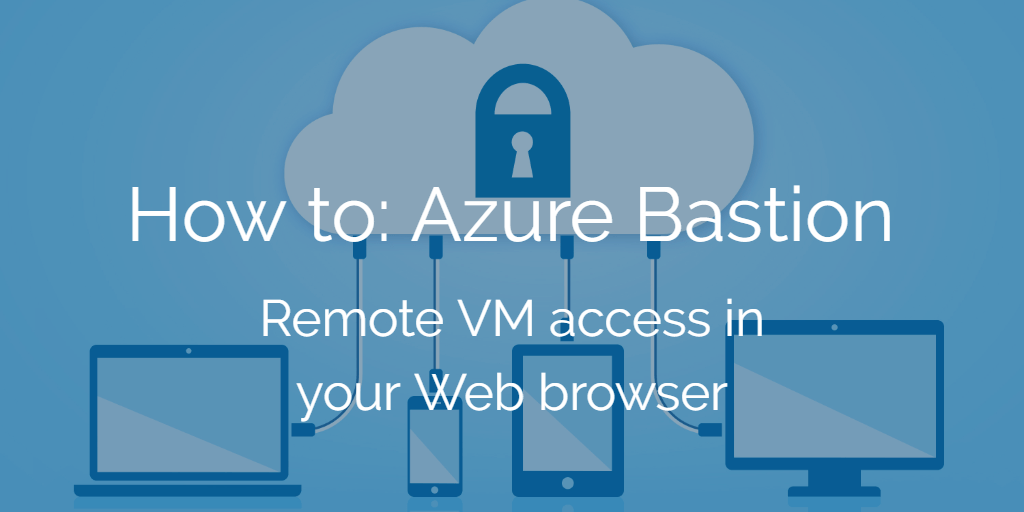
Azure Bastion: Remote VM access in your Web browser

One of the many benefits of partnering with Microsoft is that occasionally Xello gets to see, explore and put to the test upcoming products and services ahead of time.

With Azure Bastion finally being announced and released to public preview, we’ve had Bastion for a while and are keen to share our impressions of its capabilities. 

In short, for remote VM access directly in your web browser and private virtual machine access, it’s awesome and well worth looking into.

Today’s blog post from our senior consultant James Auchterlonie will explain what Azure Bastion is, why you should use it, and how to deploy the service in your business.

What is Azure Bastion?

Azure Bastion is designed to allow administrative access to a virtual machine without leaving the browser.

In Microsoft high level architecture for protected services, you can see an IaaS Bastion Host in the bottom left corner. While these hosts do increase security, they come with a few drawbacks; you need to maintain and harden them against vulnerabilities, and you need to pay extra to run them  as they can possibly introduce more vulnerabilities.

Azure Bastion removes the need for this IaaS Virtual machine, simonizing your network footprint, maintenance overhead and allows you to get on with your day-to-day ops.

Azure Bastions example diagram

Why should I use Bastion hosts?

If you haven’t already guessed, Azure Bastion increase security in a number of different ways.

  • Logging: Who accessed what, when and what did they do?
  • Protecting your application against (some) port scanning.
  • Harden a single external endpoint.
  • Prevent rogue SSH/RDP access by adding an additional layer.
  • Slow down attackers.

Some key advantages that Microsoft touts in their official documentation for Azure Bastion include:

  • RDP directly in Azure Portal.
  • SSH directly in Azure Portal.
  • Remote Session over HTML5 (HTTPS/443).
  • No Public IP required on the Azure VM.
  • No hassle of managing NSGs.
  • No Firewall Traversal for RDP/SSH.

How do I turn Azure Bastion on?

Azure Bastion is extremely easy to activate, provided you have the appropriate network size.

First, you need to assign a complete subnet to the service, ensuring that it  is larger than a /27 address space. The subnet must also match the name “AzureBastionSubnet’.

brave_M0JqiHVaop

Next, search for the Azure Bastion service within the Azure Portal. 

brave_chw85d2Agc

Select Create Azure Bastion, and fill out the required details.

brave_YaZdVH4sQI

From here, select Review + Create, and just like that – you have a enabled Azure Bastion for your network.

How do I connect to Azure Bastion for remote VM access?

Once you have enabled Azure Bastion, you can use the existing connection pane within the Azure portal to connect into your virtual machines.

You should now notice an extra “Azure Bastion” section under the connection pop-up.


If successful, you should have a new tab opened within your Web browser of choice. 

brave_0P3WW2p2c8

Azure Bastion: Early Thoughts and Minor Drawbacks

While I write this post, Azure Bastion is in public preview.

If I click publish, someone somewhere at Microsoft would be quite upset with me. There are a couple of caveats that you currently need to  be aware of when using it.

  • Azure Bastion currently doesn’t support Hub + Spoke vnet deployments. You will need to add a Bastion subnet for each vnet that you intend to use. 
  • Azure Bastion is HTML 5 and it does lack a couple of features you might be used to within RDP; I found copy/paste to be a bit flaky.
  • You currently cannot use Azure AD Sign in.
  • There isn’t currently a way to view who is using a Bastion session in the portal – you can use the event logs on each host if you’re desperate to get this information. 

That being said, this is easily one of my favourite ‘little releases’ of 2019 and I hope I can release this post as soon as possible.

The reason for this is the level of separation it provides for administrative hosts within Microsoft Azure.

Combine this solution with Just in Time network access, and you can easily avoid using any internet facing hosts – all with platform native tools. Another big win for Microsoft.

Liked this post? Feel free to reach out to the Xello team for more hands-on guidance on how Azure Bastions can fit your setup. Keep this page bookmarked as we update it with the latest capabilities as Azure Bastion continues to evolve past its public preview stage.

Originally Posted on xello.com.au

The Basics of Terraform

As more organisations continue their evolving cloud journey in 2019, many will begin to learn the concept and benefits of “infrastructure as code”, or IaC for short.

IaC is a method to define, build and deploy vast environments within a few minutes. IaC files are easily readable, extremely portable and often serve as a documentation tool for IT administrators. Each cloud platform provides a separate IaC tool: Azure uses ARM templates, AWS uses CloudFormation and Google Cloud uses Deployment Manager.

Infrastructure as Code effectively manages your business environment through machine-readable scripts or definition files, rather than through manual processes. IaC models uses code and automation to deliver the desired state of environment consistently and securely at scale, eliminating traditional security risks from human error.

So, why should you care about IaC? For starters, Infrastructure as code tools have multiple advantages for almost all cloud management and IT efforts:

  • Deployment becomes repeatable and consistent, making it easier to redeploy your cloud environment in any scenario
  • IaC is self documenting, meaning if you can read a template, you can understand what should be in your cloud environment
  • Faster deployment timelines as engineers can share templates for specific resources, saving huge amounts of build time
  • You can delete resources with confidence and bring them back the moment they are needed
  • You can version control your environment, using a source control service like Git which enables you to rollback to an older environment fast

While all three IaC tools for each cloud platform have similarities and huge advantages, each product is specific to a respective platform. You can’t deploy a CloudFormation template to Azure and you need to know the differences between the two to convert them. For many admins, understanding multiple languages is time consuming.

Thankfully, there is a new solution which simplifies this process and makes unlocking IaC’s benefits more accessible.

What is Terraform?

To solve IT administrators nightmares, Hashicorp has been kind enough to develop Terraform – a multi-cloud, multi-platform IaC tool.

In a similar manner to the other IaC tools, Terraform uses configuration files to define, deploy and destroy cloud infrastructure. To make the product even more juicy for admins, Terraform supports multiple cloud and on premise services. Your IaC files can easily be converted for on premise deployment and expanded to support different platforms – AWS, Google Cloud, Microsoft Azure, and more. 

Terraform files are written using Hashicorp Configuration Language (HCL). You might have just groaned at the thought of learning a new language, but you don’t need to stress – it’s pretty similar YAML markdown. Terraform files can be broken down into three main components; Providers, Variables and Resources.

  • Providers are utilised to detail what environment types you need (eg AWS/Azure/GCP)
  • Variables are used to set a value once and use it throughout a file
  • Resources are what will be deployed into your environments

Once a Terraform file is deployed, a state file is created detailing the current configuration and you can provide a tfvar variable file for variable input into a template. 

How to I setup Terraform?

One of my favourite features of Terraform is the ease with which you can get started.

Simply download the product and then add the binary to your environment path. If you want to test it out first, download the files and open a command prompt at the download location. Once ready to go, type Terraform in your command line to test.


There is a fair few options shown above and available to run with Terraform – we will only cover a few in this blog.

Writing Terraform Files?

Now that we have setup Terraform for use its time to write some code.

First, declare the provider you require – We’re going to start with AWS, and use this public cloud provider to deploy some networking infrastructure and an EC2 instance. 

provider "aws" {
  access_key = "YOURAWSACCESSKEY"
  secret_key = "YOURAWSSECRETKEY"
  region     = "us-east-1"
}

Should you need to configure a new AWS access and secret key you can find documentation on this process here. You can probably already tell that Terraform configuration can be a lot less wordy than its platform-specific counterpart. Next, we will deploy some resources: I want a VPC, some subnets and an EC2 instance. 

resource "aws_vpc" "myVPC" {
  cidr_block = "10.1.1.0/24"
}

resource "aws_subnet" "VPCSubnetOne" {
  vpc_id     = "${aws_vpc.myVPC.id}"
  cidr_block = "10.1.1.0/25"
}
resource "aws_subnet" "VPCSubnetTwo" {
  vpc_id     = "${aws_vpc.myVPC.id}"
  cidr_block = "10.1.1.128/25"
}

data "aws_ami" "ubuntuAMI" {
  most_recent = true

  filter {
    name   = "name"
    values = ["ubuntu/images/hvm-ssd/ubuntu-trusty-14.04-amd64-server-*"]
  }

  filter {
    name   = "virtualization-type"
    values = ["hvm"]
  }
  owners = ["099720109477"] # Canonical
}

resource "aws_instance" "web" {
  ami           = "${data.aws_ami.ubuntuAMI.id}"
  instance_type = "t2.micro"
  subnet_id = "${aws_subnet.VPCSubnetOne.id}"
}

You should notice each resource does have a list of available options and this changes depending on what you’re deploying.

I normally keep the Terraform providers reference open when writing files, as it’s a helpful tool to check what settings are available. 

If you’re interested in seeing the similarity between Azure & AWS deployment on Terraform, I’ve published some example templates to Github. 

Checking your deployment code & Terraform state

Once you have completed your Terraform code, you can complete a test of the files using Terraform plan.

This command will allow you to see in advance what actions Terraform will take. 

There is a fair bit of output produced, so I’ve removed some from the provided screenshots just to show the functionality at a high level.

<Redacted for brevity>

Whenever discussing Terraform deployments or plans, its extremely important to understand Terraform state. This is a reference file for anything you have deployed using Terraform. If you begin to work on a Terraform project, all your plans and deployment actions will be influenced by this data. State can be a tricky thing to manage when working in teams, requiring storage in a central location.

If you have a look at the following plan, you will notice that there is no changes to be deployed. This is because my current state file matches the resources I’ve deployed within AWS. I personally find this extremely useful when writing Terraform files, as I can test as often as I like and only see the changes that I’m actually writing in my files

Making your changes

Now that you have validated your files using Terraform plan, it’s time to deploy. Again, this is super simple:

Terraform apply

You should get an up to date plan with the changes to be applied and be prompted to confirm your actions.

<Redacted for brevity>

<Redacted for brevity>

A quick look at my AWS dashboard confirms a newly created EC2 instance!

Introduction to Terraform: Next steps

Hopefully you now have a high level understanding of how Terraform works and how you can use it within your environment. If you’re interested in seeing the similarity between Azure & AWS deployment on Terraform, I’ve published some example templates to Github. There is a couple of simple files using the providers for AWSAzure and a combined file to demonstrate ways to deploy across cloud. Like all good engineers, my secrets have been stripped out & you will need to reference the documentation for setting up your own environment.

Originally Posted on xello.com.au

Azure Sentinel Preview Impressions – A cloud-native SIEM with teeth

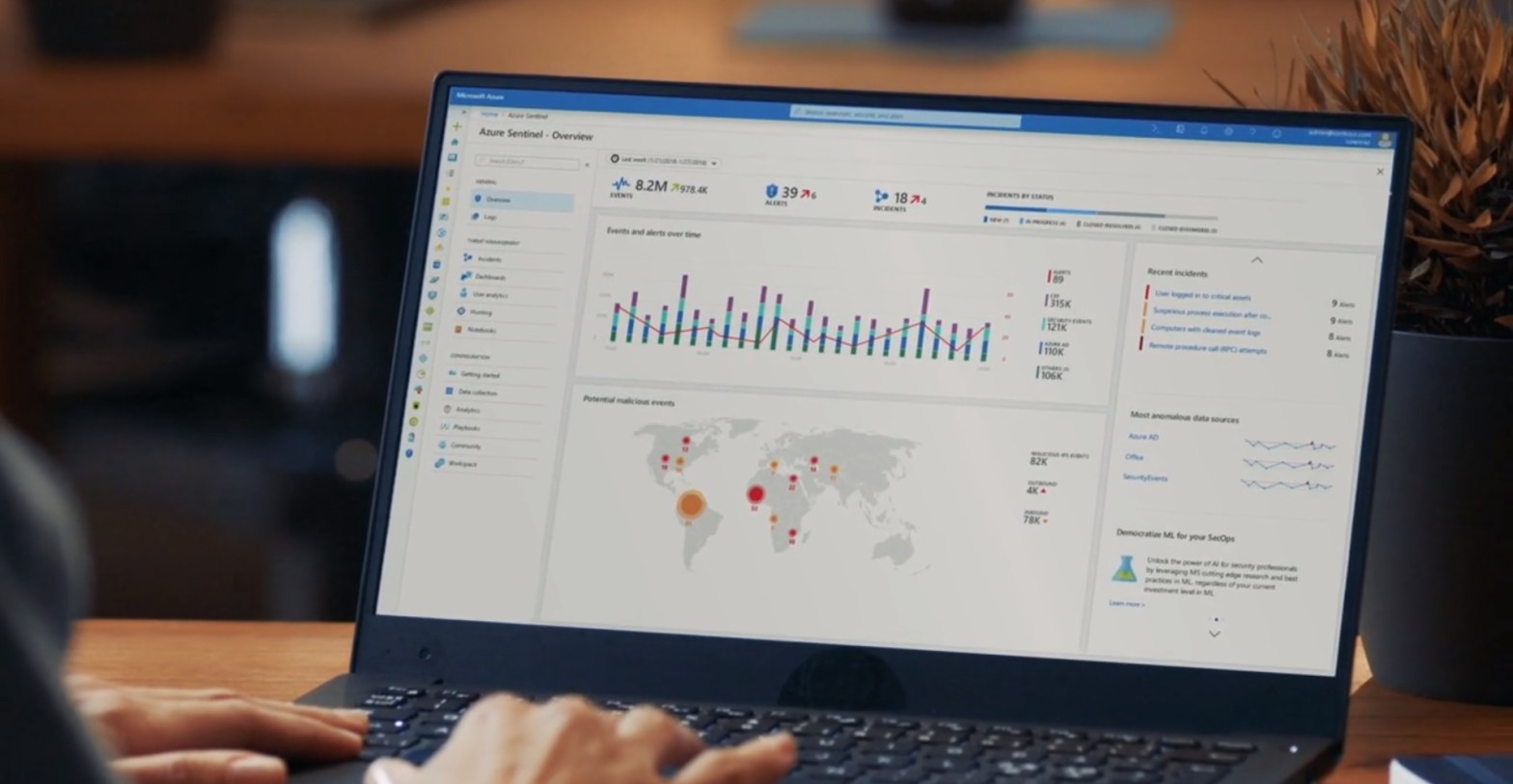
After setting up Windows Virtual Desktop last week, I thought I would continue the preview theme of my blog. Prior to RSA San Francisco, Microsoft announced Azure Sentinel: A cloud first Security information and event management (SIEM) tool built on top of Azure Log Analytics, Logic Apps & Jupyter notebooks.

As a huge security geek, Microsoft’s gradual push into the security space is something I will always welcome and I’m really excited to see some competition to Splunk’s IT Service Intelligence & AWS Guard duty. The intent from Microsoft is to provide super cool automated threat detection features, while also providing detailed analysis and incident response capability to security operations center (SOC) engineers!

The other side effect of using AI/ML is the reduced alert fatigue. Open any badly tuned SIEM (even some well-tuned ones) and you will quickly realise how many logs a fully operational environment generates. With new cloud services doing a bunch of heavy lifting, SOC engineers can focus on what matters: Responding and investigating. 

Thankfully, deployment for Azure Sentinel is extremely simple – even faster if you’re already using Azure Security Center. Let’s get stuck in!

Azure Sentinel – What you need before you begin

Before you start you will need the following:

  • An active Azure Subscription
  • A couple of pre-configured virtual machines
  • An East US log analytics workspace. Sentinel is East US only while in public preview, but expect this to change as the product nears release date.

To get some useful data in quickly, I’ve already configured Azure Security Center and forced server enrolment. If you’re not using Security Center, it is the best way to get excellent insight into your Azure security standing. The added bonus is on-boarding Sentinel is much easier!

azure_sentinel_walkthrough_screenshot_1

If you need to enable automatic provisioning, you can turn this on with a standard Security Center plan ($15/node). The settings are available from: Security Center > Security Policy > Subscription Settings > Data Collection.

Azure Sentinel – Step #1: Activating Sentinel

Enabling Azure Sentinel is extremely easy – almost too simple for a blog post.

Search for Sentinel in the focus bar on the top of your Azure Portal and select the option with the blue shield. This will take you to Azure Sentinel workspaces, where you can view the sentinel environments already configured.

Rather than utilising one Azure Sentinel instance for a complete subscription, Microsoft has accounted for multiple log analytics workspaces. I think this a really neat method for providing isolation boundaries for different areas of your environment.

azure_sentinel_walkthrough_screenshot_2

Once you’re at this page, click the Connect Workspace button glaring at you and select your pre-configured workspace when prompted.

azure_sentinel_walkthrough_screenshot_3.jpg

Azure Sentinel – Step #2: Setting up connectors

If you managed to complete the worlds easiest activation, you should be faced with the following welcome screen, and Sentinel is now active in your environment. You still need to onboard services and enable functionality, so stick with me for a bit longer.

azure_sentinel_walkthrough_screenshot_4

Select ‘data connectors’ on the right-hand side and be blown away by all the available choices. For this blog, I’ll be onboarding my Azure Security Center, Security Events and Azure Activity. This should give us an initial footprint to see some functionality. In a production configuration, I would hopefully configure the first 9 options at a minimum. Obviously, this is dependent on what services you are utilising.

azure_sentinel_walkthrough_screenshot_5

The Security Center enablement is quite simple. From here, select the menu clicker and enable a Sentinel connection for each subscription you have onboarded – you’re a good azure admin, so that’s all of them.

azure_sentinel_walkthrough_screenshot_6

Remember when I said that using Security Centre makes Sentinel easier? As you can see here, I’ve enabled all events for Security Center and Sentinel has automatically detected this. If you haven’t used Security Center, pick the desired level of logs you want, and select ‘Ok’.

azure_sentinel_walkthrough_screenshot_7

Finally, I’m going to onboard Azure Activity logs. This will give us visibility of what is happening at the platform level, and allow us to hunt for suspicious deployments, privilege escalation or undesired configuration change! Of the three services I have onboarded, this one is the most complex, requiring a grand total of 4 clicks. Quite exhausting, isn’t it?

azure_sentinel_walkthrough_screenshot_8
azure_sentinel_walkthrough_screenshot_9
azure_sentinel_walkthrough_screenshot_10

At this point, I would recommend shutting down your computer and taking a walk to your nearest pub for a well-earned Furphy.

Sentinel takes a little bit of time to start seeing logs, and a bit longer to gain some actionable log data.

Like a well-seasoned TV chef, here’s a snapshot I created earlier.

azure_sentinel_walkthrough_screenshot_11

Azure Sentinel – Step #3: Activating Machine Learning

You now have a functioning SIEM and can begin to analyse and respond to events within your environment. Congratulations!

From here, it’s time to leverage one of the largest selling points of Azure Sentinel – it’s machine learning (ML) capability, titled Fusion.

Intended to reduce alert fatigue and increase productivity, Sentinel Fusion is one of the many cloud products now utilising machine learning. Unfortunately, this isn’t enabled out of the box, and requires you to complete a couple commands to activate.

First, launch cloud shell within your portal.

azure_sentinel_walkthrough_screenshot_12

Next up, update the below command with your subscription ID, resource group name and workspace details and paste it to the console.

azure_sentinel_walkthrough_screenshot_13

You should receive a JSON response if the fusion activation completed successfully.

azure_sentinel_walkthrough_screenshot_14

If you’re not sure and need to validate, use the following command:

azure_sentinel_walkthrough_screenshot_15

At this point in my demo, I don’t actually have enough alerts and services to generate a Azure Sentinel Fusion alert, but if you want to learn more about using fusion, check out the official Microsoft blog post announcement here.

Azure Sentinel – Step #4: Threat Hunting and Playbooks

Now that we’ve configured Azure Sentinel and Fusion Machine Learning, I’m sure you’re excited to investigate threat hunting & automatic remediation (playbooks). Thankfully, both areas in Sentinel are built on top of existing, tried and tested platforms.

For Incident response, Sentinel utilises Azure Logic Apps. Anyone familiar with this product can testify to its versatility and Sentinel presents the complete list of Logic Apps for your subscription under the playbooks section.

azure_sentinel_walkthrough_screenshot_16

Should you wish to create a Logic App specific to Azure Sentinel, you will now notice an extra option within the triggers section.

azure_sentinel_walkthrough_screenshot_17

For hunting and investigation, Azure Sentinel provides a few great sections where SOC engineers can investigate to their hearts content.

For log analysis, Sentinel utilises the OMS workspace, built on top of KQL. Splunk engineers should find the syntax pretty easy to pick up, and Microsoft provides a cheat sheet for those making the transition.

azure_sentinel_walkthrough_screenshot_18

Engineers can utilise these queries to create custom alerts under the analytics configuration section. These alerts then generate cases when a threshold is met and will soon be able to activate a pre-configured runbook (currently a placeholder is shown in the configuration section).

If you’re new to threat hunting, SANS provides some quick reference posters like this detailed Windows one and deep dives on a multitude of security topics within its reading room! The following alert rule triggers when multiple deployments occur in the specified time-frame.

azure_sentinel_walkthrough_screenshot_19

.

My alert generates a case, which engineers can then investigate as demonstrated below.

azure_sentinel_walkthrough_screenshot_21

In-depth investigation often requires detailed and expansive notes, and this is where the final investigation tool really shines.

The last option under threat management is Notebooks, driven by the open source Jupyter project. Clicking this menu option will take you out of the standard Azure portal and into Notebooks Azure.

If I had to pick one thing I dislike about Azure Sentinel, the separate notebooks page would be it. I really hope that this can be brought into the Azure portal at some point, but I do understand the complexity of the notebook’s functionality. Here you can view existing projects, create new ones or clone them from other people.

azure_sentinel_walkthrough_screenshot_22

Covering all the functionality of Jupyter notebooks could be a blog series on its own, so head over to the open source homepage to see what it’s all about.

Azure Sentinel Impressions – The Xello Verdict

Overall, I’m really impressed with the product. While certain parts are quite clearly in preview and still require work, this is a confident first step into cloud SIEM market. If you’re evaluating early like myself, get used to seeing the following words throughout the product.

There really is a large amount of functionality in the pipeline, so Azure Sentinel only gets better from here. I’m especially excited to see the integrations with other cloud providers and have already signed up to preview the AWS guard duty integration.

If you want to dive straight into the Sentinel deep end, have a look at the GitHub page – there is a thriving community already committing a wealth of knowledge. Prebuilt notebooks, queries and playbooks should really help you adopt the product.

Originally Posted on xello.com.au

Windows Virtual Desktop: Public Preview Deployment Experience & Thoughts

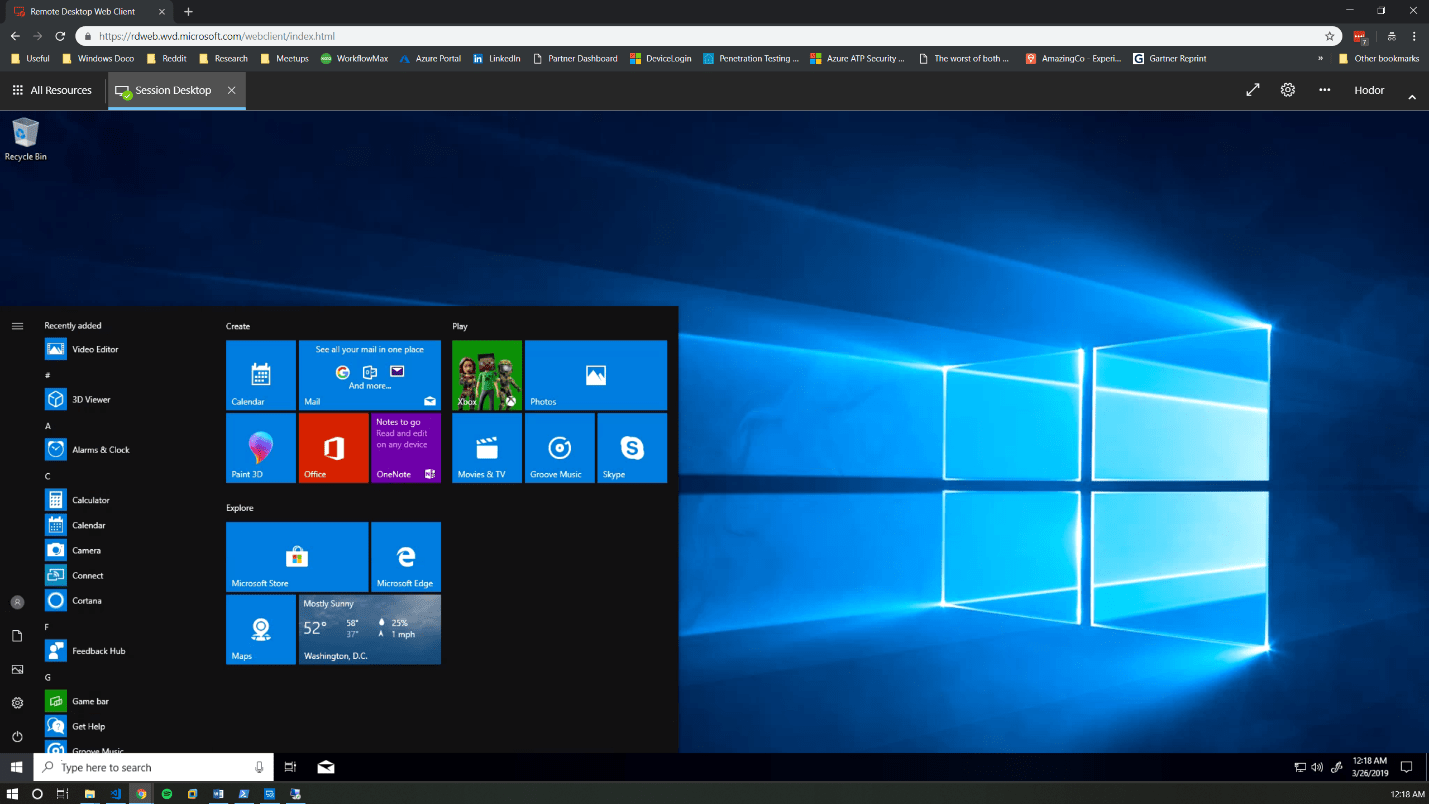
As a long-suffering Citrix and RDS administrator, I’ve eagerly awaited the release of Microsoft’s virtual desktop offering that was announced at last year’s Microsoft Ignite – to put it to the test.

With Windows Virtual Desktop finally entering public preview, I took the chance to explore what the service offers and write up a blog post on my deployment experience, the “gotchas” I ran into, and some initial thoughts. Fair warning – this is a long article, so skip to the end if you want my verdict!

Windows Virtual Desktop – What you need before you begin

Before you start, you will need to have the following:

  • An active Azure Subscription
  • A pre-configured Virtual network & AD Domain
  • A bit of patience: It’s still in preview, and different people are reporting varying levels of success with the deployment.

Thankfully, the deployment process has been well documented by Microsoft and I already had a lab environment set up.

For those wishing to follow along in a safe environment, I’ve placed some Azure Resource Manager (ARM) templates here for deploying some of the prerequisite infrastructure (you still need to configure AD properly).

Now – onto the fun stuff!

Windows Virtual Desktop – Step # 1: Installation

The first thing you will want to do, is grab some useful information and the new PowerShell module.

Locate and note down your AAD tenant ID and subscription ID – you will need these shortly. To install the PowerShell module, use the following command:

command_1_windows_virtual_desktop_guide_xello
Windows Virtual Desktop screenshot 1

You should be able to verify the install with:

command_2_windows_virtual_desktop_guide_xello

The grid view is not needed; it just makes everything so much easier to find!

Windows Virtual Desktop screenshot 2

Windows Virtual Desktop – Step # 2: Tenant setup

Now, open the following URL: https://rdweb.wvd.microsoft.com in two separate tabs.

Take note that we need to complete the next process twice: Once for the service, and once for the client.

In the first window, input your Tenant ID and click submit. You will be asked to sign in and should get back a success message.

In the second window, swap the drop-down to “Client App”, input your tenant ID and submit. Hopefully you will get a second success!

Windows Virtual Desktop screenshot 3

Windows Virtual Desktop – Step # 3: Assigning users, roles and permissions

You should now be able to view the Windows Virtual Desktop within your enterprise applications, as demonstrated in the next screenshot below.

Windows Virtual Desktop screenshot 4

From the Enterprise Apps page, you will need to add an application permission to “Windows Virtual Desktop”; Assign a new user, and the role should be automatically populated as tenant creator.

Windows Virtual Desktop screenshot 5

Windows Virtual Desktop – Step # 4: Powershell

Next, you will create a Virtual Desktop Tenant using PowerShell. The following two commands should complete this, with a slight pause for a password!

command_3_and_4_windows_virtual_desktop_guide_xello

Make sure you keep the tenant name in mind, as you will need this shortly.

Windows Virtual Desktop screenshot 6


I got a bit side tracked at this point, as it looked as if I could specify extra flags for an OMS workspace.

The possibility of on-boarding the service from the first deployment is something I could not pass up.

Sadly, it didn’t appear to function, so I’ve left this as something to investigate as the product comes out of preview!

Windows Virtual Desktop – Step # 5: Session Host Pool

Next, we will create the juiciest part – a session host pool! Navigate to the resource addition section of Azure and look up “Windows Virtual Desktop – Provision a host pool”.

The setup is a simple ClickOps exercise with a couple of gotchas. I won’t dive too deep here, as the portal is self-explanatory. The basics are as follows:

Configure a host pool: Also configure your initial testing users. Jot down the host pool name, as you will need this later.

Windows Virtual Desktop screenshot 7

For the VM configuration: Select how many users you expect, how much usage you expect, and a VM name prefix. Azure only allows 15 characters for VM names, so don’t make this one too long. If you’re labbing the solution, it’s probably good to change the VM size and make sure it’s a single VM – 100 D8S virtual machines really hammers the credit card!

Windows Virtual Desktop screenshot 8

More VM configuration: This time its domain joining and the VNet configuration. Important to call out here, the web portal does not appear to recognise subdomains. Should you utilise a subdomain, you will need to select the “specify domain” option and type it in. I had corp.contoso.com (original, I know) as my domain, so this got me scratching my head for a bit!

Windows Virtual Desktop screenshot 9

Tenant Configuration: This is where you will utilize the Tenant name from those initial PowerShell commands. If you didn’t keep record of it, get-rdstenant is your friend! Use the credentials for the user you specified as “TenantCreator” earlier.

Windows Virtual Desktop screenshot 10

Final cleanup: Validate everything is correct and click deploy! (10 points to anyone who spots the error in the below validation!)

Windows Virtual Desktop screenshot 11

I’ve downloaded the template here, because if you’re not using templates and automation – you’re living in the past. Something for a future blog post! The deployment can take a while depending on your VM sizing, so patience is key.

Windows Virtual Desktop – Step # 6: Test users

Windows Virtual Desktop screenshot 12

If you have followed along with me for this long, well done! Once the deployment is completed, you should be able to log into this page with a test user.

Windows Virtual Desktop screenshot 13

Note: If you need to add extra test users, the doc for that is simple and can be located here.

Windows Virtual Desktop – The Final Verdict

My initial thoughts on the Windows Virtual Desktop product are super positive.

For starters, it’s a huge upgrade from Remote Desktop Services 2016. My key comments and advice when evaluating or troubleshooting are:

  • Pay attention! While most of the deployment is a “next, next” click-through exercise, there is a lot of room for error.
  • The product is in preview and will have undocumented issues, so be careful with your deployment size. While Microsoft takes care of the underlying connection brokering and session management, the default 100 VM deployment is expensive.
  • Don’t test this with an Azure AD account late at night. The solution uses on-premise AD and you will be confused.
  • The product currently only supports Central US & East US 2. This will change as the product comes out of preview but expect some latency in the short term.
Windows Virtual Desktop screenshot 14-1
  • Do you have application configuration or performance requirements? You may need to test them a bit more than normal. Considering Microsoft acquired FSLogix for this reason, I have yet to evaluate how Microsoft worked through performance challenges and non-persistent settings. OneDrive comes to mind in this space.
  • Should you run into errors, the Microsoft Doc and the event logs are your friends. I had to be patient and use the diagnostic commands at different stages when getting used to the product. Don’t be afraid to log into each desktop directly either. Under the hood, it is still Windows 10!

If you want to learn more about Windows Virtual Desktop, or even just grab some advice on deployment, please feel free to reach out to myself and the Xello team!

Like the walkthrough? Stay tuned for Part 2 in my technical blog series, where I’ll next be covering Azure Sentinel and putting its many security benefits to the test.

Originally Posted on xello.com.au