Microsoft Foundry: Azure AI’s Biggest Platform Shift, What Changed and Why You Should Care

If you’ve been keeping score at home, the Azure AI platform has had more name changes than a witness protection program. Azure AI Studio became Azure AI Foundry at Ignite 2024, and then, barely six months later at Build 2025, Microsoft dropped the “Azure” entirely and rebranded the whole thing to Microsoft Foundry. I’ll admit my first reaction was “here we go again.” But this time it’s not just a name change. Microsoft has genuinely consolidated the platform underneath, and the result is the most significant simplification of the Azure AI developer experience since… well, since they first launched Azure OpenAI Service.

This post will walk through the rebrand lineage (because keeping track of the names alone can be daunting), what actually changed architecturally, what the migration path looks like for existing Azure OpenAI users, and what’s still hanging around in “Foundry Classic.” Let’s dive in!

The Name Game: A Brief History

Let me save you some confusion with a quick timeline:

  1. Azure AI Studio (2023): The original portal for working with Azure OpenAI models, prompt engineering, and fine-tuning.
  2. Azure AI Foundry (Ignite 2024, November): Rebranded and expanded to include hubs, projects, and a broader set of AI services beyond just OpenAI models.
  3. Microsoft Foundry (Build 2025, May 19): The big one. Not just a rebrand but a genuine platform consolidation. Azure OpenAI, Azure AI Services, and the old hub-based project model all fold into a single unified resource.

The important bit is that last step. Microsoft didn’t just change the logo. They created a new resource type, unified the APIs, consolidated the SDKs, and redesigned how projects, endpoints, and access control work.

What Actually Changed (Architecturally)

Here’s the before-and-after, because this is where it gets genuinely interesting:

Dimension Before After
Resource model Hub + Azure OpenAI resource + AI Services (separate resources) Single Foundry resource with projects
Endpoints 5+ separate service endpoints One project endpoint
API versioning Monthly api-version query parameters Stable v1 routes (/openai/v1/)
SDKs Multiple packages (Azure.AI.Inference, Azure.AI.Generative, Azure.AI.ML, AzureOpenAIClient) Unified Azure.AI.Projects + standard OpenAI NuGet package
Agent API Assistants API (Threads, Runs, Messages) Responses API (Conversations, Items, Responses)
Portal Foundry Classic New Foundry portal at ai.azure.com

In my opinion, the single biggest win here is the resource consolidation. Previously, building an agent that needed an OpenAI model, a search index, and content safety required three separate Azure resources, each with their own endpoint, RBAC, and networking config. Now it’s one Foundry resource with one project endpoint. The reduction in operational overhead is substantial.

The v1 API Routes: No More api-version Madness

If you’ve worked with Azure OpenAI, you know the pain of api-version query parameters. Every few months a new preview version drops, features move between versions, and you end up with code littered with version strings like 2024-08-01-preview that you’re never quite sure are current.

Microsoft Foundry introduces stable v1 routes. Instead of:

https://my-resource.openai.azure.com/openai/deployments/gpt-4o/chat/completions?api-version=2024-08-01-preview

You now use:

https://my-resource.openai.azure.com/openai/v1/responses

This means you can use the standard OpenAIResponseClient from the OpenAI NuGet package (not the Azure-specific AzureOpenAIClient wrapper) pointed directly at your Azure resource:

// Install packages:
// dotnet add package OpenAI
// dotnet add package Azure.Identity

using OpenAI;
using OpenAI.Responses;
using System.ClientModel.Primitives;
using Azure.Identity;

#pragma warning disable OPENAI001

BearerTokenPolicy tokenPolicy = new(
    new DefaultAzureCredential(),
    "https://ai.azure.com/.default");

OpenAIResponseClient client = new(
    model: "gpt-4.1",
    authenticationPolicy: tokenPolicy,
    options: new OpenAIClientOptions()
    {
        Endpoint = new Uri("https://YOUR-RESOURCE-NAME.openai.azure.com/openai/v1")
    });

OpenAIResponse response = await client.CreateResponseAsync("What is Microsoft Foundry?");
Console.WriteLine(response.GetOutputText());

This is brilliant for portability. The same client code works against OpenAI directly or Azure OpenAI with just an endpoint swap. No more Azure-specific SDK wrappers or version parameter juggling.

One-Click Upgrade from Azure OpenAI

For existing Azure OpenAI users (which, let’s be honest, is most of us), the migration story is pretty straight forward. Microsoft offers a one-click upgrade that converts your Azure OpenAI resource into a Foundry resource while preserving:

  • Your existing endpoint URL
  • All API keys
  • Deployed models and their configurations
  • Existing state and data

After the upgrade, you get a Foundry resource with a default project. Your old code keeps working because the endpoint is preserved. You can then start using the new v1 routes and the Responses API at your own pace.

Be warned: The upgrade is one-way. Once you convert to a Foundry resource, you can’t go back to a standalone Azure OpenAI resource. In my opinion, that’s fine since there’s no feature regression, but it’s worth knowing before you click the button.

The Unified SDK: Azure.AI.Projects

The old SDK story was, to put it politely, fragmented. Depending on what you were doing, you might need Azure.AI.Inference, Azure.AI.Generative, Azure.AI.ML, or the OpenAI package with the AzureOpenAIClient wrapper. Each had slightly different authentication patterns and endpoint requirements.

The Azure.AI.Projects SDK consolidates this into a single project client. You authenticate once, and you get access to models, agents, evaluations, tracing, and tools through one interface.

For inference specifically, you can use the standard OpenAIResponseClient against the v1 routes (as shown above). For platform operations like creating agents, running evaluations, or configuring tools, you use the AIProjectClient. Two NuGet packages, clear separation of concerns.

Foundry Classic: What Stays Behind

Not everything has moved to the new portal yet. Microsoft is maintaining the Foundry Classic portal for scenarios that aren’t yet supported in the new experience:

  • Standalone Azure OpenAI resources not connected to a Foundry project
  • Assistants v1 creation and authoring
  • Audio playground
  • AI service fine-tuning
  • Content Understanding (moving to new portal soon)
  • Hub-based project workflows

If you’re using any of these, you’ll need to keep working in Classic for now. The good news is that Classic isn’t going away imminently, and Microsoft is actively migrating features across. The roadmap is to eventually have everything in the new portal.

What’s GA vs Preview

This is important for production workloads. At the time of writing, here’s the high-level readiness:

  • GA (production-ready): Model discovery and deployment, agent development (Agents v2), evaluations, fine-tuning, red teaming, RBAC, quota management, speech playgrounds
  • Preview (not yet production-ready): Workflows, tracing, monitoring, memory, guardrails for agents, knowledge, AI Gateway

If you’re running production workloads, I’d strongly recommend sticking to GA features and using the Foundry GA guide to validate your feature requirements before committing.

Who Is This Actually For?

Microsoft positions Foundry for three audiences, and I think this framing is spot on:

  1. Application developers building AI-powered products with agents, models, and tools. This is the primary audience, and the portal’s “Discover, Build, Operate” flow reflects this.
  2. ML engineers and data scientists who fine-tune models, run evaluations, and manage deployments.
  3. Platform engineers and IT admins who need to govern AI resources, enforce policies, and manage access across teams.

If you’re in that first group (and I suspect most readers of this blog are), the simplification from multiple resources and SDKs down to one Foundry resource and two packages is a genuine quality-of-life improvement.

Wrapping Up

Microsoft Foundry is not just another rebrand. It’s a genuine architectural consolidation that simplifies how we build, deploy, and manage AI applications on Azure. The unified resource model, stable v1 API routes, consolidated SDK, and one-click upgrade path all point to a platform that’s maturing rapidly.

Is it perfect? No. There are still features stuck in Classic, preview capabilities that aren’t production-ready, and the name changes have been genuinely confusing. But the direction is right, and for anyone starting fresh or planning a migration, Foundry is clearly where Microsoft wants you to be.

As always, feel free to reach out with any questions or comments!

Until next time, stay cloudy!

The Responses API: Azure OpenAI’s New Core Interface, and Why It Replaces Everything You Know

Recently I was knee-deep in refactoring an agentic workflow that had become, frankly, a bit of a Frankenstein’s monster. Half the logic was on Chat Completions with manually managed message arrays, the other half was bolted onto the Assistants API with Threads and Runs. State management was scattered across three different services, and I’d lost track of which conversation context lived where. Sound familiar?

Then Microsoft dropped the Responses API in the March 2025 release, and I’ll be honest, my first reaction was “not another API surface.” But after spending a weekend migrating that messy codebase, I’m a convert. This is, without a doubt, the most architecturally significant API change Azure OpenAI has shipped to date.

This post will cover what the Responses API actually is, how it differs from Chat Completions and the Assistants API, what the new built-in tools look like in practice, and how to start migrating. Let’s dive in!

So What Actually Is the Responses API?

In plain English, the Responses API is a single, unified interface that takes the conversational simplicity of Chat Completions and combines it with the stateful, tool-rich capabilities of the Assistants API. You get server-side state management, built-in tools, and multi-turn conversation chaining, all without needing to wrangle Threads, Runs, or separate API surfaces.

The key idea is that every call returns a response object with a unique ID. You can chain conversations together by passing previous_response_id from one call to the next. The server handles the context window for you. No more manually appending message arrays and praying you haven’t blown your token limit.

Here’s what a basic call looks like:

// Install packages:
// dotnet add package OpenAI
// dotnet add package Azure.Identity

using OpenAI;
using OpenAI.Responses;
using System.ClientModel.Primitives;
using Azure.Identity;

#pragma warning disable OPENAI001

BearerTokenPolicy tokenPolicy = new(
    new DefaultAzureCredential(),
    "https://ai.azure.com/.default");

OpenAIResponseClient client = new(
    model: "gpt-4.1-nano",
    authenticationPolicy: tokenPolicy,
    options: new OpenAIClientOptions()
    {
        Endpoint = new Uri("https://YOUR-RESOURCE-NAME.openai.azure.com/openai/v1")
    });

OpenAIResponse response = await client.CreateResponseAsync("What's the capital of Australia?");
Console.WriteLine(response.GetOutputText());

If you’ve been using Chat Completions, you’ll notice a few things straight away. The endpoint is /openai/v1/responses (no more api-version query parameters on the v1 routes). The input is input rather than messages. And the output is a typed response object rather than a choices array. Pretty straight forward, right?

Chaining Conversations (Without the Headache)

The real magic is in multi-turn conversations. With Chat Completions, you had to manually track and resend the entire message history on every call. With the Responses API, you just pass the previous response ID:

// Initial request
OpenAIResponse response = await client.CreateResponseAsync("Explain quantum computing to me.");

// Follow up, the model has full context of the previous exchange
OpenAIResponse secondResponse = await client.CreateResponseAsync(
    "Now explain that like I'm five.",
    new ResponseCreationOptions()
    {
        PreviousResponseId = response.Id
    });

Console.WriteLine(secondResponse.GetOutputText());

The server retains the conversation state for 30 days by default. No more client-side arrays growing unbounded. No more accidentally dropping system messages when you truncate for token limits. The server just handles it.

Built-in Tools: Web Search, Code Interpreter, MCP, and More

This is where it gets genuinely exciting. The Responses API ships with a suite of built-in tools that previously required either the Assistants API or custom middleware:

  • Web Search via Bing grounding, so your model can fetch real-time information
  • Code Interpreter for running Python in a sandboxed container
  • File Search for document retrieval
  • Image Generation with gpt-image-1
  • Remote MCP servers, connecting to the broader Model Context Protocol ecosystem

Here’s web search in action:

ResponseCreationOptions options = new();
options.Tools.Add(ResponseTool.CreateWebSearchTool());

OpenAIResponse response = await client.CreateResponseAsync(
    "What were the key announcements at Microsoft Build 2025?", options);

Console.WriteLine(response.GetOutputText());

That’s it. One parameter. The model decides when to search, executes the search, and synthesises the results into its response. No Bing API keys, no custom function calling plumbing, no stitching results together yourself.

And for MCP, you can point the model at any remote MCP server:

ResponseCreationOptions mcpOptions = new();
mcpOptions.Tools.Add(ResponseTool.CreateMcpTool(
    serverLabel: "my_tools",
    serverUri: new Uri("https://my-mcp-server.example.com"),
    toolCallApprovalPolicy: new McpToolCallApprovalPolicy(
        GlobalMcpToolCallApprovalPolicy.NeverRequireApproval)
));

OpenAIResponse response = await client.CreateResponseAsync(
    "Search for information about Azure Functions", mcpOptions);

This is a big deal. It means your Azure OpenAI models can now natively consume tools from the entire MCP ecosystem, the same protocol used by Claude, GitHub Copilot, and a growing number of developer tools.

Context Compaction: Managing Long Conversations

One of my favourite features (and one that would have saved me a lot of pain in that Frankenstein codebase) is context compaction. When your conversation history grows large, the API can automatically summarise earlier turns to fit within the model’s context window.

You can enable server-side compaction like this:

ResponseCreationOptions compactionOptions = new()
{
    Input = conversation,
};
compactionOptions.ContextManagement.Add(new ResponseContextManagement()
{
    Type = "compaction",
    CompactThreshold = 200000
});

OpenAIResponse response = await client.CreateResponseAsync(compactionOptions);

When the token count crosses your threshold, the service automatically compacts the context and emits an encrypted compaction item. You don’t need to do anything special; just keep appending output items to your input array as normal.

For those of you running long-lived agent loops or multi-step workflows, this is a game-changer. No more writing custom summarisation logic or awkwardly truncating message histories.

Background Tasks for Long-Running Workflows

Need to kick off a complex reasoning task that might take a few minutes? The Responses API supports background mode:

ResponseCreationOptions backgroundOptions = new()
{
    AllowBackgroundExecution = true
};

OpenAIResponse response = await client.CreateResponseAsync(
    "Analyse this codebase and suggest architectural improvements.",
    backgroundOptions);

// Poll for completion
while (response.Status == "queued" || response.Status == "in_progress")
{
    await Task.Delay(2000);
    response = await client.GetResponseAsync(response.Id);
}

Console.WriteLine(response.GetOutputText());

This is particularly useful with reasoning models like o3 and o4-mini, where complex tasks can take longer than a typical HTTP timeout allows. You fire the request, go make a coffee, and poll for the result.

So What Happens to Chat Completions?

Good news: Chat Completions isn’t going anywhere. Microsoft has been clear that it remains a supported, stable API for straightforward text generation. But here’s the honest truth: every new feature is landing on the Responses API first. Built-in tools, MCP, compaction, background tasks, computer use… none of these are coming to Chat Completions.

In my opinion, if you’re starting a new project today, use the Responses API. If you have an existing Chat Completions integration that’s working well, there’s no rush to migrate. But if you’re building anything agentic, anything with tools, or anything that needs multi-turn state management, the Responses API is the clear choice.

Here’s a quick comparison to help you decide:

Capability Chat Completions Responses API
Basic text generation Yes Yes
Multi-turn state management Manual (client-side) Automatic (server-side)
Built-in web search No Yes
Code interpreter No (Assistants only) Yes
Remote MCP servers No Yes
Context compaction No Yes
Background async tasks No Yes
Computer use No Yes
Function calling Yes Yes

Getting Started

Migration is pretty straight forward. The key changes are:

  1. Endpoint: Move from /chat/completions (with api-version params) to /openai/v1/responses
  2. Client: Use the OpenAIResponseClient with a BearerTokenPolicy pointed at your Azure resource’s /openai/v1 endpoint
  3. Input: Replace messages arrays with input (and optionally instructions for system-level guidance)
  4. Output: Read from response.GetOutputText() instead of response.Choices[0].Message.Content
  5. Multi-turn: Replace manual message history with PreviousResponseId
  6. Function calling: Schemas are now strict by default (which is honestly better practice anyway)

The official migration guide from OpenAI has the full details, and the Azure-specific how-to guide covers the Azure endpoints and authentication patterns.

Note: The Responses API is available in Australia East (among many other regions), so those of us down under get local latency. Always a welcome bonus.

Wrapping Up

The Responses API is the most significant API evolution Azure OpenAI has shipped. It simplifies state management, brings powerful built-in tools to every developer, and opens the door to the MCP ecosystem. If you’ve been juggling Chat Completions and the Assistants API like I was, the unification alone is worth the migration effort. And with features like context compaction and background tasks, it’s clearly built for the agentic workloads that are defining 2025.

As always, feel free to reach out with any questions or comments!

Until next time, stay cloudy!
Azure Spring Clean – 5 Tips to help you align to Enterprise Scale

Azure Spring clean. Easily one of my favourite Azure events of each year.  I spend a lot of my year helping organisations clean up their Azure tenancies, so even though I’m writing this as Australia enters autumn, I’m super pumped to take you through my contribution for 2022. 5 Tips for how you can start your own Enterprise Scale journey, today.

For those who haven’t heard of Enterprise Scale Landing Zones (ES) before – It’s a bloody straight forward concept. Microsoft has developed several Azure best practices through the years, with these being reflected in the Cloud Adoption and Well Architected Frameworks. Enterprise Scale is guidance on how best to use these techniques in your environment.

This article will take you through five tips for customers who already have an Azure deployment, albeit not really aligned to the ES reference architectures. Microsoft also provides guidance on this process here. Let’s dive right in!

1. Understand the right reference architecture for you!

While Enterprise Scale (ES) is generic in implementation, every organisation is unique. As such, Microsoft has provided multiple options for organisations considering ES. Factors such as your size, growth plans or team structure will all influence your design choices. The first tip is pretty simple – Understand where you currently are, compared to the available architectures.

The four reference architectures that Microsoft provides for ES are:

Each Enterprise Scale pattern builds in capability

Note: The ES reference architectures that Microsoft provides here aren’t the only options; Cloud Adoption Framework clearly allows for “Partner Led” implementations which are often similar or a little more opinionated. Shameless Plug 😉 Arinco does this with our Azure Done Right offering.

2. Implement Management Groups & Azure Policy

Once you have selected a reference architecture, you then need to begin aligning. This can be challenging, as you’re more than likely already using Azure in anger. As such you want to make a change with minimal effort, but a high return on investment. Management Groups & Policy are without a doubt the clear winner here, even for single subscription deployments.

Starting simple with Management groups is pretty easy, and allows you to segment subscriptions as you grow and align. Importantly, Management Groups will help you to target Azure Policy deployments.

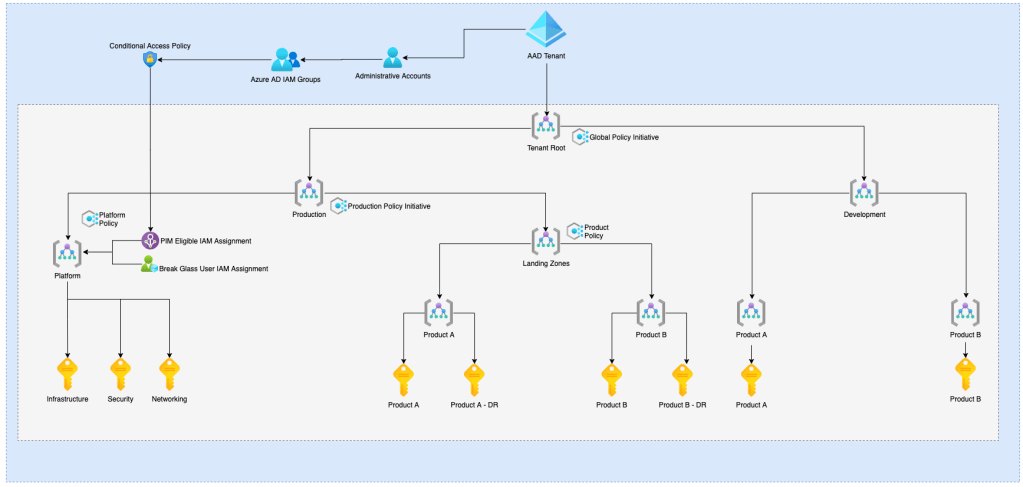
A simple structure here is all you need to get going, Production/Development as an easy line to draw, but it’s really up to you. In the below plan, I’ve segmented Prod and Dev, Platform and Landing Zone and finally individual products. Use your own judgement as required. A word from the wise; Don’t go too crazy, you can continue to segregate with subscriptions and resource groups.

Once you’ve set up Management Groups, it’s time to limit any future re-work and minimise effort for changes. Azure Policy is perfect for this, and you should create a Policy initiative which enforces your standards quickly. Some examples of where you might apply policy are;

If you haven’t spent much time with Azure Policy, the AWESOME-Azure-Policy repository maintained by Jesse Loudon has become an amazing source for anything you would want to know here!

3. Develop repeatable landing zones to grow in.

The third tip I have is probably the most important for existing deployments. Most commonly, non ES organisations operate in a few monolithic subscriptions, sometimes with a few resource groups to separate workloads. In the same way that microservices allow development teams to iterate on applications faster, Landing Zones allow you to develop capability on Azure faster.

A Landing Zone design is always slightly different by organisation, depending on what Azure architecture you selected and your business requirements.

Some things to keep in mind for your LZ design pattern are:

  • How will you network each LZ?
  • What security and monitoring settings are you deploying?
  • How will you segment resources in a LZ? Single Resource Group or Multiple?
  • What cost controls do you need to apply?
  • What applications will be deployed into each LZ?
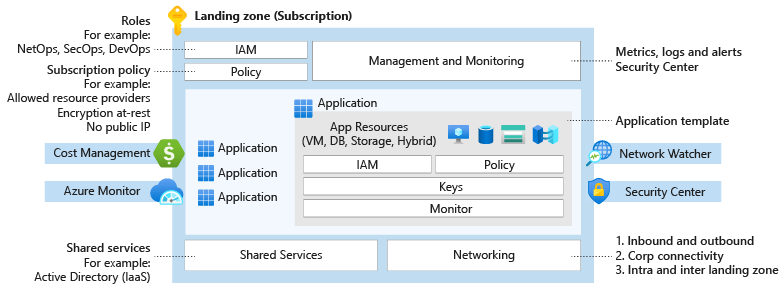
A Microsoft Example LZ design

There’s one common consideration on the above list that I’ve intentionally left off the above list;

  • How will you deploy a LZ?

The answer for this should be Always as Code. Using ARM Templates, Bicep, Terraform, Pulumi or any IaC allows you to quickly deploy a new LZ in a standardised pattern. Microsoft provides some excellent reference ARM templates here or Terraform here to demonstrate exactly this process!

4. Uplift security with Privileged Identity Management (PIM)

I love PIM. It’s without a doubt, my favourite service on Azure. If you haven’t heard of PIM before (how?), PIM focuses on applying approved administrative access within a time-boxed period. This works by automatically removing administrative access when not required, and requiring approval with strong authentication to re-activate the access. You can’t abuse an administrator account that has no admin privileges.

While the Enterprise Scale documentation doesn’t harp on the benefits of PIM, the IAM documentation makes it clear that you should be considering your design choices and that’s why using PIM is my fourth tip.

I won’t deep dive into the process of using PIM, the 8 steps you need here are already documented. What I will say is, spend the time to onboard each of your newly minted landing zones, and then begin to align your existing subscriptions. This process will give you a decent baseline of access which you can compare to when minimising ongoing production access.

5. Minimise cost by sharing platform services

Cost is always something to be conscious of when operating on any cloud provider and my final tip focuses on the hip pocket for that reason. Once you are factoring in things like reserved instances, right sizing or charge back models into your landing zones, this final tip is something which can really allow you to eek the most out of a limited cloud spend. That being said, this tip also requires a high degree of maturity within your operating model you must have a strong understanding of how your teams are operating and deploying to Azure.

Within Azure, there is a core set of services which provide a base capability you can deploy on top of. Key items which come to mind here are:

  • AKS Clusters
  • App Service Plans
  • API Management instances
  • Application Gateways

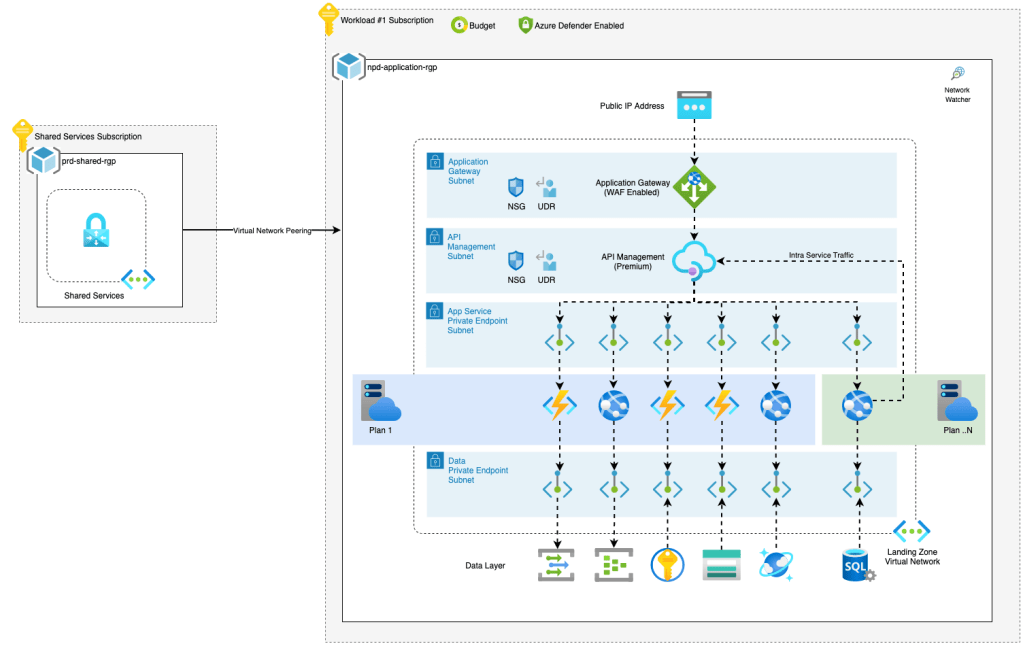
Once you have a decent landing zone model and Enterprise Scale alignment, now you can begin to share certain services. Take the below diagram as an example. Rather than build a single plan per app service or function, a dedicated plan helps to reduce the operating cost of all the resources. In the same way, a platform team might use the APIM DevOps Toolkit to provide a shared APIM instance.

Note that multiple different functions are using the same app service plan here.

Considering this capability model when you develop your alignment is an easy way which you can minimise work required to move resources to a new Enterprise Scale deployment. In my opinion, consolidating Kubernetes pods or APIM API’s is a lot easier than moving clusters or Azure resources between landing zones.

Note: While technically possible, try to avoid sharing IaaS virtual machines. This does save cost, but encourages using the most expensive Azure compute. You want to push engineering teams towards cheaper and easier PaaS capabilities where possible.

Final Thoughts

Hopefully you have found some value in this post and my tips for Enterprise Scale alignment. I’m really looking forward to seeing some of the community generated content. Until next time, stay cloudy!

Connecting Security Centre to Slack – The better way

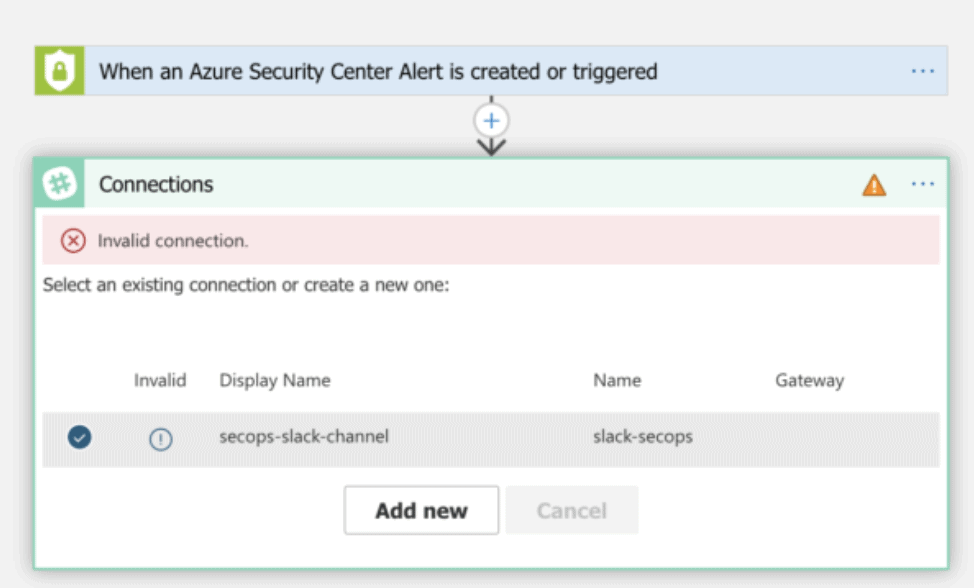
Recently I’ve been working on some automated workflows for Azure Security Center and Azure Sentinel. Following best practice, after initial development, all our Logic Apps and connectors are deployed using infrastructure as code and Azure DevOps. This allows us to deploy multiple instances across customer tenants at scale. Unfortunately, there is a manual step required when deploying some Logic Apps, and you will encounter this on the first run of your workflow.

A broken logic app connection

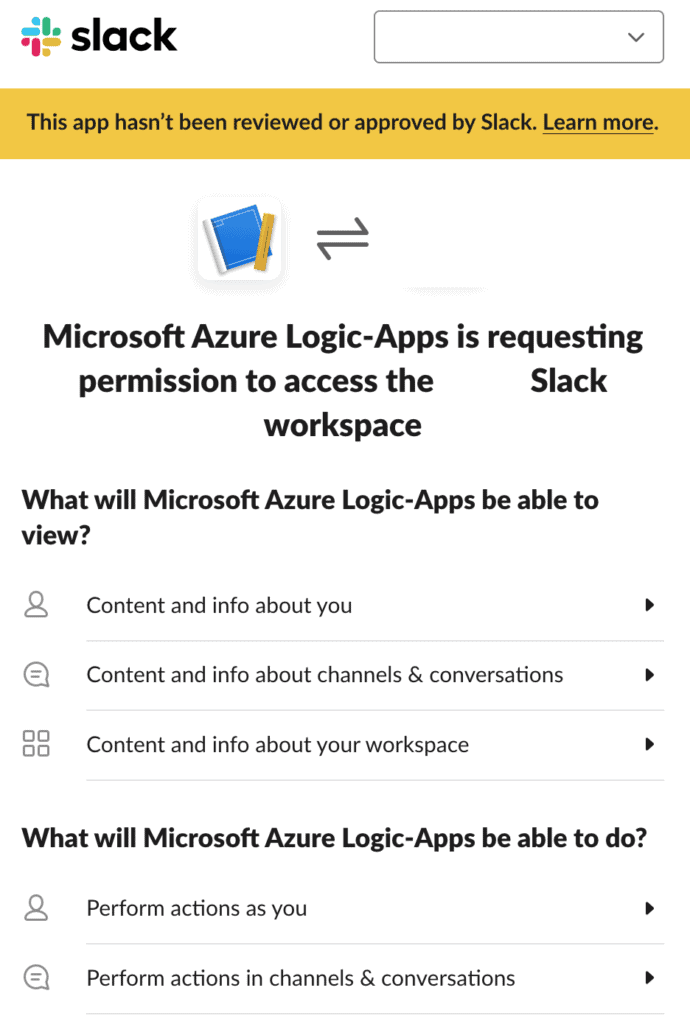
This issue occurs because connector resources often utilise OAuth flows to allow access to the target services. We’re using Slack as an example, but this includes services such as Office 365, Salesforce and GitHub. Selecting the information prompt under the deployed connector display name will quickly open a login screen, with the process authorising Azure to access your service.

Microsoft provides a few options to solve this problem;

  1. Manually apply the settings on deployment. Azure will handle token refresh, so this is a one time task. While this would work, it isn’t great. At Arinco, we try to avoid manual tasks wherever possible
  2. Pre-deploy connectors in advance. As multiple Logic Apps can utilise the same connector, operate them as a shared resource, perhaps owned by a platform engineering group.
  3. Operate a worker service account, with a browser holding logged-in sessions. Use DevOps tasks to interact and authorise the connection. This is the worst of the three solutions and prone to breakage.

A better way to solve this problem would be to sidestep it entirely. Enter app webhooks for Slack. Webhooks act as a simple method to send data between applications. These can be unauthenticated and are often unique to an application instance.

To get started with this method, navigate to the applications page at api.slack.com, create a basic application, providing an application name and a “development” workspace.

Next, enable incoming webhooks and select your channel.

Just like that, you can send messages to a channel without an OAuth connector. Grab the CURL that is provided by Slack and try it out.

Once you have completed the basic setup in Slack, the hard part is all done! To use this capability in a Logic App, add the HTTP task and fill out the details like so:O

Our simple logic app.

You will notice here that the request body we are using is a JSON formatted object. Follow the Slack block kit and you can develop some really nice looking messages. Slack even provides an excellent builder service.

Block kit enables you to develop rich UI within Slack.

Completing our integration in this manner has a couple of really nice benefits – Avoiding the manual work almost always pays off.

  1. No Manual Integration, Hooray!
  2. Our branding is better. Using the native connector does not allow you to easily change the user interface, with messages showing as sent by “Microsoft Azure Logic Apps”
  3. Integration to the Slack ecosystem for further workflows. I haven’t touched on this here, but if you wanted to build automatic actions back to Logic Apps, using a Slack App provides a really elegant path to do this.

Until next time, stay cloudy!

Empowered Multi Cloud: Azure Arc and Kubernetes

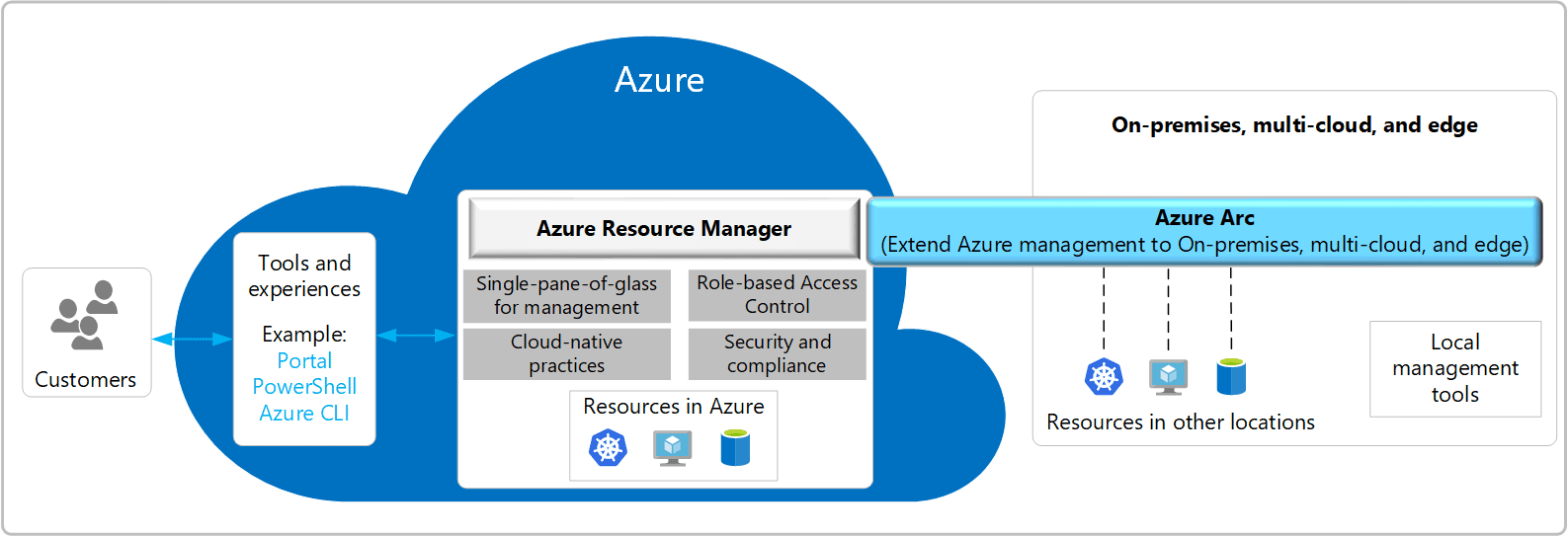
At Arinco, we love Kubernetes, and in this post I’ll be covering the basics of configuring Azure Arc on Kubernetes. As a preview feature, this integration enables Azure administrators to connect to remote Kubernetes clusters, manage deployments, policy and monitoring data, without leaving the Azure Portal. If you’re experienced with Google Cloud, this functionality is remarkably similar to Google Anthos, with the main difference being that Anthos only focuses on Kubernetes, whereas Arc will quite happily manage Servers, SQL and Data platforms as well.

Azure Arc Architecture

Before we begin, there is a couple of key facts that you need to be aware of while Arc for Kubernetes is in preview:

  • Currently only East US and West Europe deployments are supported.
  • Only x64 based clusters will work at this time and no manifests are published for you to recompile software on other architectures.
  • Testing of supported clusters is still in early days. Microsoft doesn’t recommend the Arc enabled Kubernetes solution for production workloads

Enabling Azure Arc

Assuming that you already have a cluster that will be supported, configuring a connected Kubernetes instance is a monumentally simple task Two steps to be exact.

1. Enable the preview azure cli extensions

1az extension add --name connectedk8s
az extension add --name k8sconfiguration

2. Run the CLI commands to enable an ARC enabled cluster

1az connectedk8s connect --name GKE-KUBERNETES-LAB --resource-group KUBERNETESARC-RG01
Enabling Azure Arc

Under the hood, Azure CLI completes the following when we execute the above command:

  1. Creates an ARM Resource for your cluster, generating the relevant connections and secrets.
  2. Connects to your currently cluster context (see kubeconfig) and creates a deployment using Helm. ConfigMaps are provided with details for connecting to Azure, with resources being published into an azure-arc namespace
  3. Monitors this deployment to completion. For failing clusters, expect to be notified of failure after approximately 5-10 minutes.

If you would like to watch the deployment, it generally takes around 30 seconds for an Arc namespace to show up and from there you can watch as Azure Arc related pods are scheduled.

So what can we do?

Once a cluster is on-boarded to Arc, there is actually quite a bit you can do in preview, including monitor. The most important in my opinion is simplified method to control clusters via the GitOps model. If you were paying attention during deployment, you will have noticed that Flux is used to deliver this functionality. Expect further updates here, as Microsoft has publicly committed recently to further developing a standardised GitOps model.

Using this configurations model is quite simple, and to be perfectly honest, you don’t even need to understand exactly how Flux works. First, commit your Kubernetes manifests to a public repository, don’t stress too much about order or structure. Flux is basically magic here and can figure everything out. Next add a configuration to your cluster and go grab a coffee.

For my cluster, I’ve used the Microsoft demo repository. Simply fork this and you can watch the pods create as you update your manifests.

Closing Thoughts

There is a lot of reasons to run your own cluster, or a cluster in another cloud. Generally speaking, if you’re currently considering Azure Arc you will be pretty comfortable with the Kubernetes ecosystem as a whole.

Arc enabled clusters will just be another tool you could add, and you should use same consideration that you apply for every other service you consider utilising. In my opinion the biggest benefit of the service is simplified and centralized management capability across multiple clusters. This allows me to manage my own AKS clusters and AWS/GCP clusters with centralized policy enforcement, RBAC and monitoring. I would probably look to implement Arc if I was running a datacenter cluster, and definitely if I was looking to migrate to AKS in the future. If you are looking to get test out Arc for yourself, I would definitely recommend the Azure Arc Jumpstart.
Until next time, stay cloudy!

Originally posted at arinco.com.au

Empowered Multi Cloud: Onboarding IaaS to Azure Arc

More often than not, organisations move to the cloud on a one way path. This can be a challenging process with a large amount of learning, growth and understanding required. But why does it all have to be in one direction? What about modernising by bringing the cloud to you? One of the ways that organisations can begin this process when moving to Azure is by leveraging Azure Arc, a provider agnostic toolchain that supports integration of IaaS, Data services and Kubernetes to the Azure Control Plane.

Azure Arc management control plane diagram
Azure Arc Architecture

Using Arc, technology teams are enabled to use multiple powerful Azure tools in an on-premise environment. This includes;

  • Azure Policy and guest extensions
  • Azure Monitor
  • Azure VM Extensions
  • Azure Security Centre
  • Azure Automation including Update Management, Change Tracking and Inventory.

Most importantly, the Arc pricing model is my favourite type of pricing model: FREE! Arc focuses on connecting to Azure and providing visibility, with some extra cost required as you consume secondary services like Azure Security Centre.

Onboarding servers to Azure Arc

Onboarding servers to Arc is a relatively straight forward task and is supported in a few different ways. If you’re working on a small number of servers, onboarding using the Azure portal is a manageable task. However, if you’re running at scale, you probably want to look at an automated deployment using tools like the VMWare CLI script or Ansible.

For the onboarding in this blog, I’m going to use the Azure Portal for my servers. First up, ensure you have registered the HybridCompute provider using Azure CLI.

az provider register --namespace 'Microsoft.HybridCompute'

Next, search for Arc in the portal and select add a server. The process here is very much “follow the bouncing ball” and you shouldn’t have too many questions. Data residency is already supported for Australia East, so no concerns there for regulated entities!

Providing basic residency and storage information

When it comes to tagging of Arc servers, Microsoft suggests a few location based tags, with options to include business based also. In a lab scenario like this demo, location is pretty useless, however in real-world scenarios this can be quite useful for identifying what resources exist in each site. Post completion of tagging, you will be provided with a script for the target server. You can use generated script for multiple servers, however, you will need to update any custom tags you may add.

The script execution itself is generally a pretty quick process, with the end result being a provisioned resource in Azure and the Connected Machine Agent on your device.

Connected Machine Agent – Installed
Our servers in Azure

So what can we do?

Now that you’ve completed onboarding you’re probably wondering what next? I’m a big fan of the Azure Monitoring platform (death to SCOM), so for me this will always be a Log Analytics onboarding task, closely followed by Security Centre. One of the key benefits with Azure Arc is the simplicity of everything, so you should find onboarding any Arc supported solution to be a straight forward process. For Log Analytics navigate to insights, select your analytics workspace, enable and you’re done!

Enabling Insights

What logs you collect is entirely on your logging collection strategy with Microsoft providing further detail on that process here. In my opinion, the performance data being located in a single location is worth it’s weight in gold.

Performance Data

If you have already connected Security Centre to your workspace, onboarding to Log Analytics often also connects your device to Security centre, enabling detailed monitoring and vulnerability management.

Domain controller automatically enabled for Security Centre

Right for you?

While the cloud enables organisations to move quickly, sometimes moving slowly is just what the doctor ordered. Azure Arc is definitely a great platform for organisations looking to begin using Azure services and most importantly, bring Azure into their data centre. If you’re wanting to learn more about Arc, Microsoft has published an excellent set of quick-starts here and the documentation is also pretty comprehensive. Stay tuned for our next post, where we explore using Azure Arc with Kubernetes. Until next time, stay cloudy!

Managing Container Lifecycle with Azure Container Registry Tasks

Recently I’ve been spending a bit of time working with a few customers, onboarding them to Azure Kubernetes Service. This is generally a pretty straight forward process; Build Cluster, Configure ACR, Setup CI/CD.

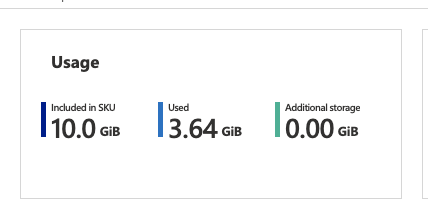
During the CI/CD buildout with one customer, we noticed pretty quickly that our cheap and easy basic ACR was filling up rather quickly. Mostly with development containers which were used once or twice and then never again.

Not yet 50% full in less than a month;

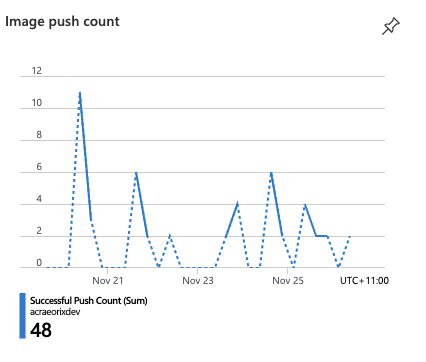
In my opinion the build rate of this repository wasn’t too bad. We pushed to development and testing 48 times over a one week period, with these incremental changes flowing through to production pretty reliably on our weekly schedule.

That being said, the growth trajectory put our development ACR filling up in about 3-4 months. Sure we could simply upgrade the ACR to a standard or premium tier, but at what cost? A 4x price increase between basic and standard SKU’s, and even steeper 9x to premium. Thankfully, we can solve for this in few ways.

  1. Manage our container size – Start from scratch or a container specific OS like alpine.
  2. Build containers less frequently – We have almost a 50:1 development to production ratio, so there is definitely a bit of wiggle room there.
  3. Manage the registry contents, deleting old or untagged images.

Combining these options will provides our team with a long term and scalable solution. But how can we implement item number 3?

ACR Purge & Automatic Cleanup

As a preview feature, Azure Container Registry now supports filter based cleanup of images and containers. This can be completed as an ad-hoc process or as a scheduled task. To get things right, I’ll first build an ACR command that deletes tagged images.

# Environment variable for container command line
PURGE_CMD="acr purge \
  --filter 'container/myimage:dev-.*' \
  --ago 3d --dry-run"

az acr run \
  --cmd "$PURGE_CMD" \
  --registry mycontainerregistry \
  /dev/null

I’ve set an agreed upon container age for my containers and I’m quite selective of which containers I purge. The above dry-run only selects the development “myimage” container and gives me a nice example of what my task would actually do.

Including multiple filters in purge commands is supported. So, feel free to build expansive query sets. Once you are happy with the dry run output, it’s time to setup an automatic job. ACR uses standard cronjob syntax for scheduling, so this should be a pretty familiar experience for linux administrators.

PURGE_CMD="acr purge \
  --filter 'container/my-api:dev-.*' \
  --filter 'container/my-db:dev-.*' \
  --ago 3d"

az acr task create --name old-container-purge \
  --cmd "$PURGE_CMD" \
  --schedule "0 2 * * *" \
  --registry mycontainerregistry \
  --timeout 3600 \
  --context /dev/null

And just like that, we have a task which will clean up our registry daily at 2am.

As an ARM template please?

If you’re operating or deploying multiple container registries for various teams, you might want to standardise this type of task across the board. As such, integrating this into your ARM templates would be mighty useful.

Microsoft provides the “Microsoft.ContainerRegistry/registries/tasks” resource type for deploying these actions at scale. There is, however, a slightly irritating quirk. Your ACR command must be base64 encoded YAML following the tasks specification neatly documented here. I’m not sure about our readers, but generally combining Base64, YAML and JSON leaves a nasty taste in my mouth!

{
    "$schema": "https://schema.management.azure.com/schemas/2019-04-01/deploymentTemplate.json#",
    "contentVersion": "1.0.0.0",
    "parameters": {
        "containerRegistryName": {
            "type": "String",
            "metadata": {
                "description": "Name of the ACR to deploy task resource."
            }
        },
        "containerRegistryTaskName" : {
            "defaultValue": "old-container-purge",
            "type": "String",
            "metadata": {
                "description": "Name for the ACR Task resource."
            }
        },
        "taskContent" : {
            "defaultValue": "dmVyc2lvbjogdjEuMS4wCnN0ZXBzOiAKICAtIGNtZDogYWNyIHB1cmdlIC0tZmlsdGVyICdjb250YWluZXIvbXktYXBpOmRldi0uKicgLS1maWx0ZXIgJ2NvbnRhaW5lci9teS1kYjpkZXYtLionIC0tYWdvIDNkIgogICAgZGlzYWJsZVdvcmtpbmdEaXJlY3RvcnlPdmVycmlkZTogdHJ1ZQogICAgdGltZW91dDogMzYwMA==",
            "type": "String",
            "metadata": {
                "description": "Base64 Encoded YAML for the ACR Task."
            }
        },
        "taskSchedule"  : {
            "defaultValue": "0 2 * * *",
            "type": "String",
            "metadata": {
                "description": "CRON Schedule for the ACR Task resource."
            }
        },
        "location": {
            "type": "string",
            "defaultValue": "[resourceGroup().location]",
            "metadata": {
                "description": "Location to deploy the ACR Task resource."
            }
        }
    },
    "functions": [],
    "variables": {},
    "resources": [
        {
            "type": "Microsoft.ContainerRegistry/registries/tasks",
            "name": "[concat(parameters('containerregistryName'), '/', parameters('containerRegistryTaskName'))]",
            "apiVersion": "2019-06-01-preview",
            "location": "[parameters('location')]",
            "properties": {
                "platform": {
                    "os": "linux",
                    "architecture": "amd64"
                },
                "agentConfiguration": {
                    "cpu": 2
                },
                "timeout": 3600,
                "step": {
                    "type": "EncodedTask",
                    "encodedTaskContent": "[parameters('taskContent')]",
                    "values": []
                },
                "trigger": {
                    "timerTriggers": [
                        {
                            "schedule": "[parameters('taskSchedule')]",
                            "status": "Enabled",
                            "name": "t1"
                        }
                    ],
                    "baseImageTrigger": {
                        "baseImageTriggerType": "Runtime",
                        "status": "Enabled",
                        "name": "defaultBaseimageTriggerName"
                    }
                }
            }
        }
    ],
    "outputs": {}
}

The above encoded base64 translates to the following YAML. Note that it includes the required command and some details about the execution timeout limit. For actions that purge a large amount of containers, Microsoft advises you might need to increase this limit beyond the default 3600 seconds (1 Hour).

version: v1.1.0
steps: 
  - cmd: acr purge --filter 'container/my-api:dev-.*' --filter 'container/my-db:dev-.*' --ago 3d"
    disableWorkingDirectoryOverride: true
    timeout: 3600

Summary

Hopefully, you have found this blog post informative and useful. There are a number of scenarios for this feature-set; deleting untagged images, cleaning up badly named containers or even building new containers from scratch. I’m definitely excited to see this feature move to general availability. As always, please feel free to reach out if you would like to know more. Until next time!

Attempting to use Azure ARC on an RPi Kubernetes cluster

Recently I’ve been spending a fair bit of effort working on Azure Kubernetes Service. I don’t think it really needs repeating, but AKS is an absolutely phenomenal product. You get all the excellence of the K8s platform, with a huge percentage of the overhead managed by Microsoft. I’m obviously biased as I spend most of my time on Azure, but I definitely find it easier than GKE & EKS. The main problem I have with AKS is cost. Not for production workloads or business operations, but for lab scenarios where I just want to test my manifests, helm charts or whatever. There’s definitely a lot of options for spinning up clusters on demand for lab scenarios or even reducing cost of an always present cluster; Terraform, Kind or even just right sizing/power management. I could definitely find a solution that fits within my current Azure budget. Never being one to take the easy option, I’ve taken a slightly different approach for my lab needs. A two node (soon to be four) Raspberry Pi Kubernetes cluster.

Besides just being cool, It’s great to have a permanent cluster available for personal projects, with the added bonus that my Azure credit is saved for more deserving work!

That’s all good and well I hear you saying, but I needed this cluster to lab AKS scenarios right? Microsoft has been slowly working to integrate “non AKS” Kubernetes into Azure in the form of ARC enabled clusters – Think of this almost as an Azure compete to Google Anthos, but with so much more. The reason? Arc doesn’t just cover the K8s platform and it brings a whole host of Azure capability right onto the cluster.

The setup

Configuring a connected ARC cluster is a monumentally simple task for clusters which meet muster. Two steps to be exact.

1. Enable the preview azure cli extensions

az extension add --name connectedk8s
az extension add --name k8sconfiguration

2. Run the CLI commands to enable an ARC enabled cluster

az connectedk8s connect --name RPI-KUBENETES-LAB --resource-group KUBERNETESARC-RG01

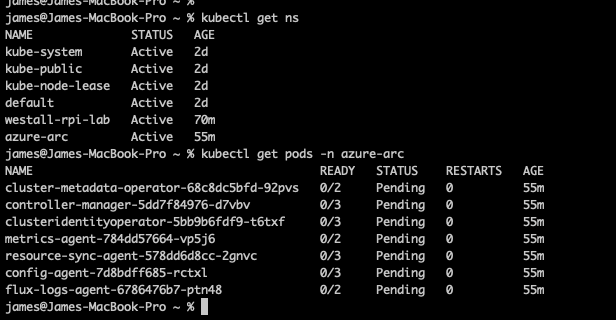
In the case of my Raspberry Pi cluster – arm64 architecture really doesn’t cut it. Shortly after you run your commands you will receive a timeout and discover pods stuck in a pending state.

Timeouts like this are never good.
Our very suck pods.

Digging into the deployments, it quickly becomes obvious that an amd64 architecture is really needed to make this work. Pods are scheduled across the board with a node selector. Removing this causes a whole host of issues related to what looks like both container compilation & software architecture. For now it looks like I might be stuck with a tantalising object in Azure & a local cluster for testing. I’ve become a victim of my own difficult tendencies!

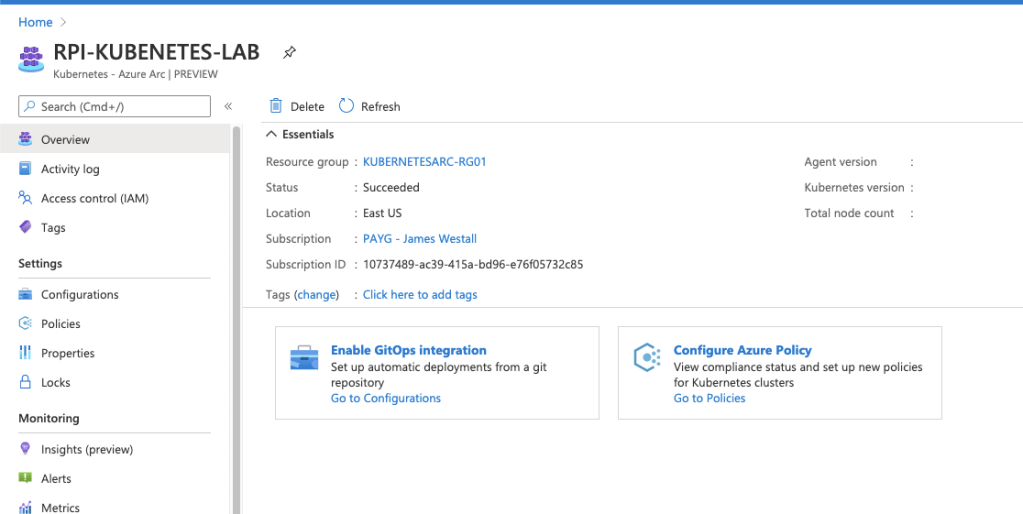
So close, yet so far.

Right for you?

There is a lot of reasons to run your own cluster – Generally speaking, if you’re doing so you will be pretty comfortable with the Kubernetes ecosystem as a whole. This will just be “another tool” you could add, and you should apply the same consideration for every other service you consider using. In my opinion the biggest benefit of the service is the simplified/centralised management plane across multiple clusters. This allows me to manage my own (albeit short lived) AKS clusters and my desk cluster with centralised policy enforcement, RBAC & monitoring. I would probably look to implement if I was running my datacenter cluster, and definitely if I was looking to migrate to AKS in the future. If you are considering, keep in mind a few caveats;

  1. The Arc Service is still in preview – expect a few bumps as the service grows
  2. Currently only available in EastUS & WestEurope – You might be stuck for now if operating under data residency requirements.

At this point in time, I’ll content myself with local cluster. Perhaps I’ll publish a future blog post if I manage to work through all these architecture issues. Until next time, stay cloudy!

Security Testing your ARM Templates

In medicine there is a saying “an ounce of prevention is worth a pound of cure”” – What this concept boils down to for health practitioners is that engaging early is often the cheapest & simplest method for preventing expensive & risky health scenarios. It’s a lot cheaper & easier to teach school children about healthy foods & exercise than to complete a heart bypass operation once someone has neglected their health. Importantly, this concept extends to multiple fields, with CyberSecurity being no different.
Since the beginning of cloud, organisations everywhere have seen explosive growth in infrastructure provisioned into Azure, AWS and GCP. This explosive growth all too often corresponds with increases to security workload without required budgetary & operational capability increases. In the quest to increase security efficiency and reduce workload, this is a critical challenge. Once a security issue hits your CSPM, Azure Security Centre or AWS Trusted Inspector dashboard, it’s often too late; The security team now has to work to complete within a production environment. Infrastructure as Code security testing is a simple addition to any pipeline which will reduce the security group workload!

Preventing this type of incident is exactly why we should complete BASIC security testing..

We’ve already covered quality testing within a previous post, so today we are going to focus on the security specific options.

The first integrated option for ARM templates is easily the Azure Secure DevOps kit (AzSK for short). The AzSK has been around for while and is published by the Microsoft Core Services and Engineering division; It provides governance, security IntelliSense & ARM template validation capability, for free. Integrating to your DevOps Pipelines is relatively simple, with pre-built connectors available for Azure DevOps and a PowerShell module for local users to test with.

Another great option for security testing is Checkov from bridgecrew. I really like this tool because it provides over 400 tests spanning AWS, GCP, Azure and Kubernetes. The biggest drawback I have found is the export configuration – Checkov exports JUnit test results, however if nothing is applicable for a specified template, no tests will be displayed. This isn’t a huge deal, but can be annoying if you prefer to see consistent tests across all infrastructure…

The following snippet is all you really need if you want to import Checkov into an Azure DevOps pipeline & start publishing results!

  - task: UsePythonVersion@0
    inputs:
      versionSpec: '3.7'
      addToPath: true
    displayName: 'Install Python 3.7'
  
  - script: python -m pip install --upgrade pip setuptools wheel
    displayName: 'Install pip3'

  - script: pip3 install checkov
    displayName: 'Install Checkov using pip3'

  - script: checkov -d ./${{parameters.iacFolder}} -o junitxml -s >> checkov_sectests.xml
    displayName: 'Security test with Checkov'

  - task: PublishTestResults@2
    displayName: Publish Security Test Results (Checkov)
    condition: always()
    inputs:
      testResultsFormat: JUnit
      testResultsFiles: '**sectests.xml'

When to break the build & how to engage..

Depending on your background, breaking the build can really seem like a negative thing. After all, you want to prevent these issues getting into production, but you don’t want to be a jerk. My position on this is that security practitioners should NOT break the build for cloud infrastructure testing within dev, test and staging. (I can already hear the people who work in regulated environments squirming at this – but trust me, you CAN do this). While integration of tools like this is definitely an easy way to prevent vulnerabilities or misconfigurations from reaching these environments, the goal is to raise awareness & not increase negative perceptions.

Security should never be the first team to say no in pre-prod environments.

Use the results of any tools added into a pipeline as a chance to really evangelize security within your business. Yelling something like “Exposing your AKS Cluster publicly is not allowed” is all well and good, but explaining why public clusters increase organisational risk is a much better strategy. The challenge when security becomes a blocker is that security will no longer be engaged. Who wants to deal with the guy who always says no? An engaged security team has so much more opportunity to educate, influence and effect positive security change.

Don’t be this guy.

Importantly, engaging well within dev/test/sit and not being that jerk who says no, grants you a magical superpower – When you do say no, people listen. When warranted, go ahead and break the build – That CVSS 10.0 vulnerability definitely isn’t making it into prod. Even better, that vuln doesn’t make it to prod WITH support of your development & operational groups!

Hopefully this post has given you some food for thought on security testing, until next time, stay cloudy!

Note: Forest Brazael really has become my favourite tech related comic dude. Check his stuff out here & here.

Azure AD Administrative Units – Preview!

Recently I was approached by a customer regarding a challenge they wanted to solve. How to delegate administrative control of a few users within Azure Active Directory to some lower level administrators? This is a common problem experienced by teams as they move to cloud based directories – a flat structure doesn’t really allow for delegation on business rules. Enter Azure AD Administrative Units; A preview feature enabling delegation & organisation of your cloud directory. For Active Directory Administrators, this will be a quite familiar experience to Organisational Units & delegating permissions. Okta also has a similar functionality, albeit implemented differently.

Active Directory Admins will immediately feel comfortable with Azure AD Admin Units

So when do you want to use this? Basically any time you find yourself wanting a hierarchical & structured directory. While still in preview, this feature will likely grow over time to support advanced RBAC controls and in the interim, this is quite an elegant way to delegate out directory access.

Setting up an Administrative Unit

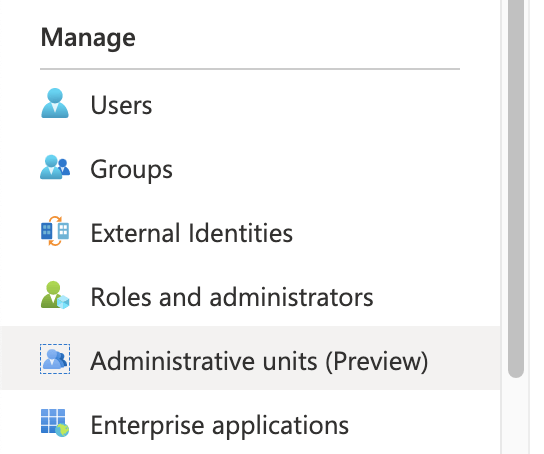
Setting up an Administrative Unit is quite a simple task within the Azure Portal; Navigate to your Azure AD Portal & locate the option under Manage.

Select Add, and provide your required names & roles. Admin assignment is focused on user & group operations, as device administration has similar capability under custom intune roles and application administrators can be managed via specified roles.

You can also create administrative units using the Azure AD PowerShell Module; A simple one line command will do the trick!

New-AzureADAdministrativeUnit -Description "Admin Unit Blog Post" -DisplayName "Blog-Admin-Users"

User Management

Once you have created an administrative unit, you can begin to add users & groups. As this point in time, administrative units only support assignment manually, either one by one or via csv upload. The process itself is quite simple; Select Add user and click through everyone you would like to be included.

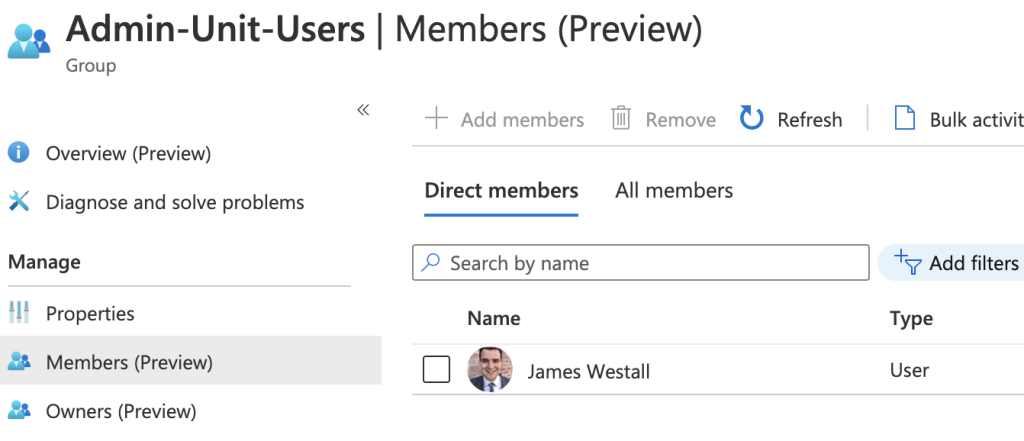
While this works quite easily for small setups, at scale you would likely find this to be a bit tedious. One way to work around this is to combine Dynamic Groups with your chosen PowerShell execution environment. For me, This is an Automation Account. First, configure a dynamic group which automatically drags in your desired users.

Next, execute the following PowerShell snippet. Note that I am using the Azure AD Preview module, as support is yet to move to the production module.

https://gist.github.com/jameswestall/832549f95ac7caac80a1f6c74fef1931.js

This can be configured on a schedule as frequently as you need this information to be accurate!

You will note here that one user gets neatly removed from the Administrative Unit – This is because the above PowerShell treats the dynamic group as an authoritative source for Admin Unit Membership. When dealing with assignment through user details (Lifecycle Management) I find that selecting authoritative sources reduces both work effort and confusion. Who wants to do manual management anyway? Should you really want to allow manual addition, simply remove the line marked to remove members!

Hopefully you find this post a useful insight to the usage of Administrative Units within your organisation. There a lot of useful scenarios where this can be leveraged and this feature should most definitely help you minimise administrative privilege in your environment (hooray!). As always, feel free to reach out with any questions or comments! Stay tuned for my next post, where I will be diving into Azure AD Access Packages 🙂